PayPal remains one of the most widely used payment processors in the world, especially for freelancers, e-commerce businesses, and creators. But after years of using it for my own businesses, I’ve learned that PayPal’s convenience comes at a steep cost if you don’t understand its fee structure and withdrawal quirks — particularly for anyone based outside the US.
This guide consolidates everything I’ve learned about using PayPal for business over 12+ years, including real examples, support conversations, and workarounds that have saved me thousands of euros.
Choosing the Right PayPal Account Type
PayPal offers three account types, and the choice matters more than you’d think:
- Personal: For individuals who shop and pay online. You can accept or deny individual payments and see the fee before accepting.
- Premier: For casual sellers. Now discontinued for new sign-ups — PayPal merged this into Personal/Business. If you still have one, same fees as Business but fewer features.
- Business: For anyone selling online. Operate under your company name, manage up to 200 employee accounts, and access advanced checkout options.
Key details most people miss:
- You don’t need a registered company for a Business account — a DBA (“doing business as”) works fine.
- You can have multiple Business accounts, but each must be linked to a different bank account and credit card.
- You can have one Personal account and one Business account. You cannot have both a Personal and Premier account simultaneously.
- Downgrading account types is generally not supported — PayPal recommends opening a new account at the desired level instead.
- No monthly fees for any standard account type. PayPal Pro costs $30/month for full payment gateway functionality (US, Canada, UK only).
- Additional services are priced separately: Virtual Terminal costs $30/month and recurring billing costs $10/month.
Understanding PayPal Fees
PayPal’s fee structure has multiple layers, and they compound in ways that aren’t immediately obvious.
Base Transaction Fees
The standard rate for receiving payments varies by country:
- US: 2.99% + $0.49 per transaction (3.49% + $0.49 for PayPal Checkout)
- UK: 2.9% + £0.30 per transaction
- Spain/Eurozone: 2.90% + €0.35 per transaction
Important: PayPal calculates its percentage fee on the total amount of the sale including tax. If you charge VAT to EU customers, PayPal takes its cut on the gross amount including VAT — not the net amount. This isn’t widely known but it adds up.
It’s also worth noting that fee structures vary by country — US and European rates are now similar, but the fixed fee per transaction differs. Check PayPal’s fee page for your specific country.
Volume Discounts (Merchant Rate)
If you process significant monthly volume, you may be eligible for custom lower rates. But here’s the catch: discounted rates are not automatically applied. You need to contact PayPal’s sales team and negotiate. Many sellers don’t know this and overpay for years. PayPal no longer publishes specific volume thresholds — you’ll need to ask.
Cross-Border Fees
When you receive a payment from a customer in a different country, PayPal charges an additional cross-border fee on top of the base transaction fee. The percentage varies by region — typically 0% to 2.0% depending on where your buyer is located.
Exception: Cross-border fees do not apply to sellers in EU countries receiving EUR payments from other EU countries. So if you’re based in Spain and sell to a German customer paying in EUR, no cross-border fee. But selling to a UK customer (outside the Eurozone) triggers the fee.
As a rough average, expect to pay around 5% in total transaction fees for every offshore payment you receive via PayPal.
Currency Conversion Fees
This is where PayPal really gets expensive. When PayPal converts currency on your behalf — which happens automatically during withdrawals if your account currency doesn’t match your bank currency — they apply a spread of approximately 3-4% above the mid-market rate. This markup is baked into the exchange rate itself, so it doesn’t appear as a separate line item.
To put real numbers on it: on a $2,500 transfer, I documented a €44 difference between PayPal’s conversion and my bank’s conversion — that’s roughly 2% more on every single transaction. On larger amounts the impact is dramatic: withdrawing $50,000, PayPal offered €43,338 while Wise would give €44,378 — a difference of over €1,000.
How to Withdraw Money from PayPal (Without Getting Fleeced)
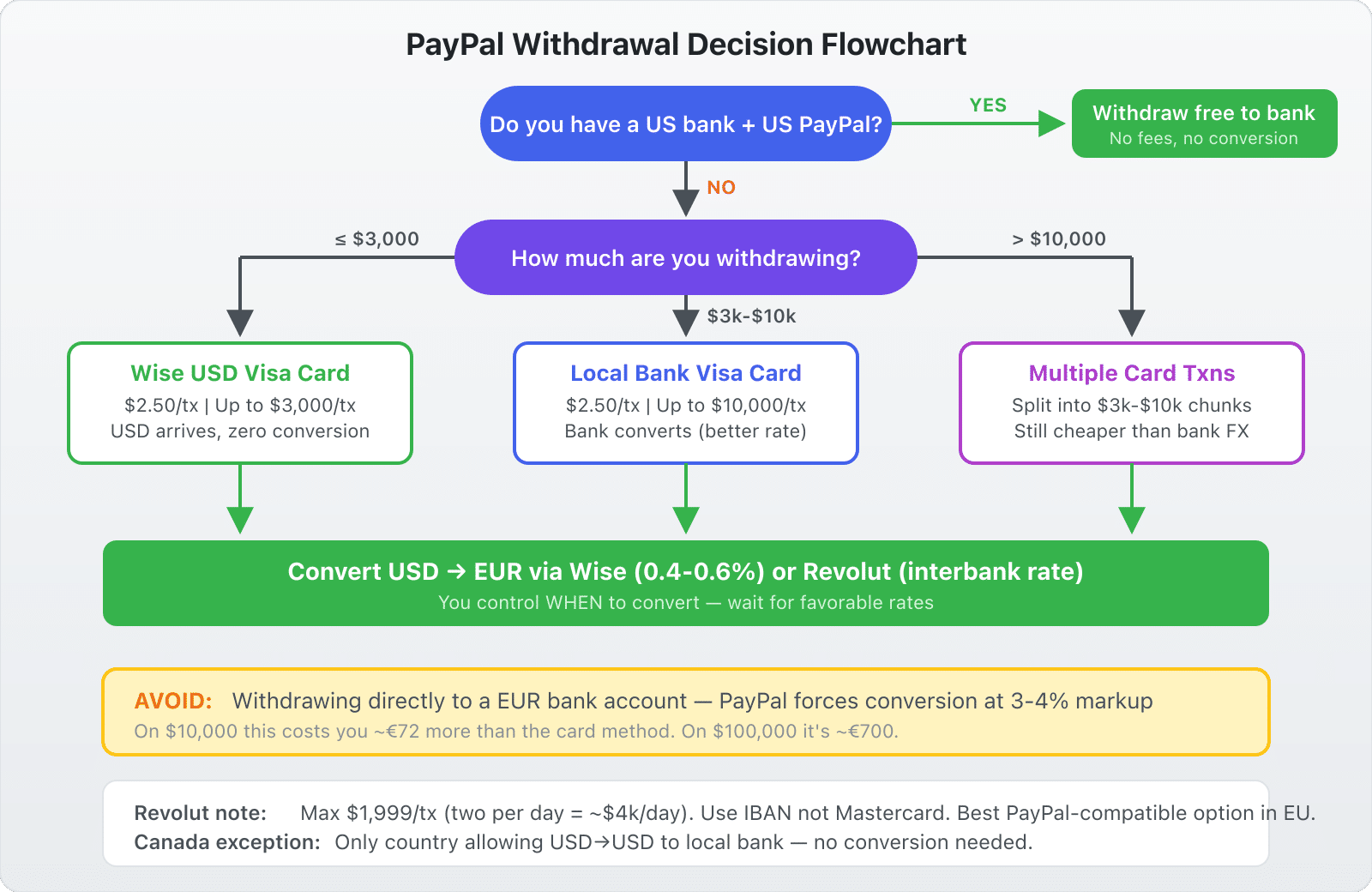
If you have a US bank account and a US PayPal account, withdrawals are free with no conversion. For everyone else, here are the options ranked from best to worst:
Best: Withdraw to a USD Visa Card (Wise or Revolut)
This is currently the most cost-effective method for non-US PayPal users. By withdrawing to a Visa card that supports USD — such as those from Wise or Revolut — PayPal sends the funds in USD without converting them. You then convert at Wise or Revolut’s much better rates.
I have personally confirmed that withdrawing USD from my European PayPal account to my Wise USD Visa card arrives in full, in USD, with no currency conversion applied at either end. This makes it the cleanest option available.
The fee is a flat $2.50 per withdrawal. Withdrawal limits vary:
- Wise Visa: up to $3,000 per transaction
- Revolut Visa: $1,999 maximum per transaction (two per day, so ~$4,000/day)
- Local bank Visa: up to $10,000 per transaction depending on account history
Note: The $2,500 per-withdrawal limit that used to be universal is actually a VISA-side regulation, not PayPal’s own policy. This was confirmed directly by PayPal support. The exact limit depends on your card issuer and account history.
To use this method, you need to tell PayPal to send USD to your card instead of converting. Contact PayPal support and ask them to change the withdrawal currency for your linked card to USD. They’ll ask for the last 4 digits of the card and update it in their system.
Decent: Withdraw to a Matching Currency Balance
PayPal allows you to hold balances in multiple currencies. If you receive a GBP payment, you can hold it as GBP and withdraw to a GBP account — no conversion.
To set this up:
- Go to Wallet → Manage Currencies and add the currencies you want to hold.
- Set your payment receiving preference to hold foreign currencies rather than auto-converting.
- Open a fintech account (Revolut or Wise) with matching currency accounts.
- Withdraw each currency to its matching account — no conversion takes place.
Revolut is the most reliably compatible with PayPal across Europe. Wise has historically been classified as a “virtual bank” by PayPal, and compatibility varies by country and account type. If Wise doesn’t link, try calling PayPal directly — some users have had success getting their Wise USD routing and account numbers added manually (it shows up as “Community Federal Savings Bank”). N26 works cleanly with PayPal since it’s a licensed EU bank, but only handles EUR.
Warning: PayPal has stated that it cannot assist with missing funds involving virtual bank accounts, since they can’t communicate with those institutions the way they can with traditional banks. The risk is low in practice, but worth knowing.
Avoid: Withdraw to a Local EUR Bank Account
No withdrawal limits, but PayPal forces automatic conversion to EUR using their poor exchange rate. On $10,000, I calculated a difference of €72 compared to the card withdrawal method. On $100,000, you’d lose roughly €700. This method should only be used as a last resort.
Special Case: Canada
Canada has historically been the only country where PayPal allowed USD-to-USD transfers to a local bank account without conversion, due to US-Canadian banking cooperation. However, this workaround has become less reliable for new accounts — PayPal now generally forces conversion to CAD. If you have a legacy setup with a cross-border USD account (e.g., through RBC), it may still work.
Choosing a PayPal Checkout Service
If you’re using PayPal for e-commerce, you’ll need to choose a checkout method:
- PayPal Website Payments Standard: Buyers can pay with credit card or PayPal account. Best default choice — available in the most countries and doesn’t require buyers to have PayPal. Supports multiple IPN URLs, meaning you can use a single PayPal account for multiple stores.
- PayPal Express Checkout: Requires buyers to log into or create a PayPal account. Best as an additional payment option alongside a credit card gateway. Only supports one IPN URL, so you need separate PayPal accounts for separate stores.
- PayPal Payments Pro: Full payment gateway — buyers stay on your site. Only available in the US, Canada, and UK. Requires SSL certificate. $30/month. Choose this only if you need branded checkout.
If you’re unsure, start with Website Payments Standard.
Managing Multiple PayPal Accounts
A question that comes up frequently: should you have separate PayPal accounts for each brand or product?
Always separate personal and business accounts. This is allowed by PayPal and is essential for clean accounting.
If you plan to sell a product or brand, create a separate PayPal account for it from day one. During due diligence, having clean, separated transaction history is invaluable. You can transfer the entire PayPal account to the buyer, preserving the history and any volume-based rate discounts.
If you don’t plan to sell, a single Business account is simpler. Advantages:
- One login, one dashboard
- Higher monthly volume = better chance of qualifying for merchant rate
- Simpler expense management
Pro tip: Even with a single account, you can add separate email addresses for each product. Link a unique email per product/brand. If you ever sell that product, the buyer just adds that email to their own PayPal account and all future payments automatically route to them — no need to update settings at dozens of affiliate networks.
Child accounts: PayPal offers a “child” account option linked to your main account. Money is swept from the child to the parent daily with no fees, and the child doesn’t need its own linked bank account. Set this up by creating a new PayPal account and calling support to link it.
How to Change PayPal Account Ownership
When selling a business, you can transfer a PayPal account in four steps:
- Add the new owner’s email to the account → confirm it → make it primary
- Delete the old email (so it can be reused on another account)
- Change the Business Name
- Change the Business Contact information
Each step requires verification, but in that order the account effectively transfers to the new owner.
Refunds
When you issue a refund through PayPal, the buyer gets all their money back. However, PayPal changed its policy to keep the original transaction fee — meaning sellers lose the fee even when refunding. Factor this into your pricing if you have a meaningful refund rate.
The Bottom Line
PayPal is convenient but expensive, especially for international sellers dealing with multiple currencies. The single most impactful thing you can do is set up USD withdrawals to a Wise or Revolut Visa card — it takes 20 minutes and can save you thousands per year.
For invoicing clients directly, consider replacing PayPal entirely with Wise — zero fees to receive, and you keep the money in the original currency. I’ve eliminated PayPal completely for direct invoicing and the savings are substantial.
If you must keep PayPal for automated payments (subscriptions, digital products, affiliate payouts), optimize your withdrawal method and make sure you’ve requested merchant rate discounts. These small optimizations compound into real money over time.
Note: If you have any questions after reading this article, please leave a comment. Unfortunately due to time constraints I am unable to offer advice over email, so all emails related to PayPal will remain unanswered.
Related








Leave a Reply