Having reliable backup software is essential for any Mac user. I’ve tested several options over the years and here’s how they compare — including important considerations for Apple Silicon Macs and modern macOS versions.
Time Machine — The Default Choice
Time Machine comes built into macOS and is the easiest backup solution for most people. It creates incremental backups to an external drive or network-attached storage, and lets you restore individual files or your entire system.
On modern macOS (Ventura and later), Time Machine uses APFS snapshots instead of the older HFS+ sparse bundles, which makes backups faster and more efficient on compatible drives.
Time Machine is excellent for what it does, but it has limitations: you can’t easily create a bootable backup, it doesn’t offer granular control over what gets backed up, and restoring to a new machine requires going through macOS Recovery.
Carbon Copy Cloner — My Top Pick
Carbon Copy Cloner (CCC) is the most polished and capable backup tool for Mac. It handles full disk clones, scheduled backups, and folder-level sync with a clean interface.
Key features:
- Full disk clones and incremental backups
- Task scheduling with detailed filtering options
- Backup verification (CCC actually checks that your backups are intact)
- Support for backing up to external drives, NAS, and remote volumes
Important note on bootable backups: On Apple Silicon Macs (M1 and later), creating a traditional bootable clone is no longer straightforward. macOS uses a sealed system volume that can’t be cloned the way it used to be. CCC handles this gracefully — it creates a backup that can be used to restore your system via macOS Recovery, even if it’s not directly bootable in the old sense. The developer (Bombich Software) has excellent documentation explaining this change.
CCC costs around $50 and is worth every cent if you care about your data.
SuperDuper
SuperDuper is a solid alternative that’s been around for years. It does the same core job — full disk clones and smart updates — with a simpler interface. It’s been updated for Apple Silicon and modern macOS.
SuperDuper offers a free version that handles basic cloning, with the paid version ($28) adding scheduling, smart updates, and scripting. If CCC feels like overkill for your needs, SuperDuper is a reliable and cheaper alternative.
FreeFileSync — Best Free Option
FreeFileSync is open-source, completely free, and works well for folder-level synchronization. It’s not a full disk backup tool — it syncs specific folders between locations (local drives, external drives, network paths).
I used FreeFileSync for years before switching to CCC. It’s excellent for syncing specific folders to an external drive or NAS, and the price (free) is hard to argue with. The interface is functional if not beautiful.
rsync (Command Line)
For those comfortable with the Terminal, rsync is a powerful and flexible tool for synchronizing files between locations. It’s built into macOS and is the backbone of many backup tools. GUI wrappers like RsyncOSX exist if you want rsync’s power with a visual interface, but this is really aimed at more technical users who are comfortable with command-line tools.
My Setup
I use a combination:
- Time Machine for continuous automatic backups — this is the safety net that runs in the background
- Carbon Copy Cloner for periodic full backups to external drives and for archiving specific folders
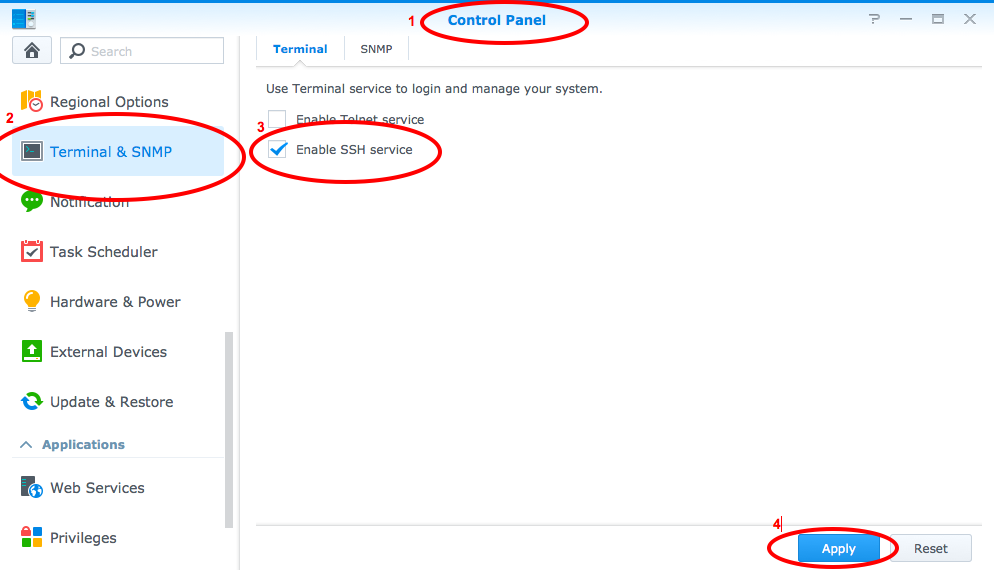
- Synology NAS for network-based backups (I’ve written about my Synology setup separately)
The key principle: have at least two independent backups, ideally in different physical locations. Time Machine on a local drive plus a cloud or offsite backup is the minimum I’d recommend. For a deeper dive into backup strategy, see my guide to backing up your important digital assets.
Related






Leave a Reply