Every Kindle book you buy comes locked with Digital Rights Management (DRM). That means you can only read it through Amazon’s own apps and devices. You can’t convert it to EPUB, you can’t open it in Calibre, and if Amazon ever decides to pull a title or shut down your account, those books are gone.
This guide walks through how to remove DRM from your Kindle books so you can read them on any device, convert them to any format, and back them up properly. You bought these books — you should be able to use them.
Is This Legal?
This is a gray area that varies by jurisdiction, but the ethical case is straightforward: you’re not pirating anything. You bought the book. You’re removing a technical restriction that prevents you from using something you already paid for. You’re not distributing copies or bypassing protection to avoid paying.
In the US, the DMCA makes circumventing DRM technically illegal even for personal use. In the EU and other regions, personal backup rights are stronger. Know your local laws. This guide is written for people who own the books they’re removing DRM from — not for piracy.
What You’ll Need
- Calibre — the open-source ebook management tool (calibre-ebook.com)
- DeDRM plugin — maintained by noDRM on GitHub (github.com/noDRM/DeDRM_tools)
- Kindle desktop app — an older version (more on why below)
Step 1: Install Calibre
Download and install Calibre from calibre-ebook.com. This is the foundation — it handles your ebook library and does the format conversion once DRM is stripped.
If you already have Calibre installed, make sure you’re on a reasonably recent version. Calibre 6.x or 7.x both work fine with the current DeDRM plugin.
Step 2: Download the DeDRM Plugin
The DeDRM plugin is the tool that actually strips the DRM during import. It was originally created by Apprentice Alf and is now maintained by noDRM on GitHub.
Go to github.com/noDRM/DeDRM_tools/releases and download the latest release. The file will be named something like DeDRM_tools_X.X.X.zip.
Important: Don’t extract this archive yet. Keep it as a ZIP file — you’ll need to drill into it in the next step.
Step 3: Install the DeDRM Plugin in Calibre
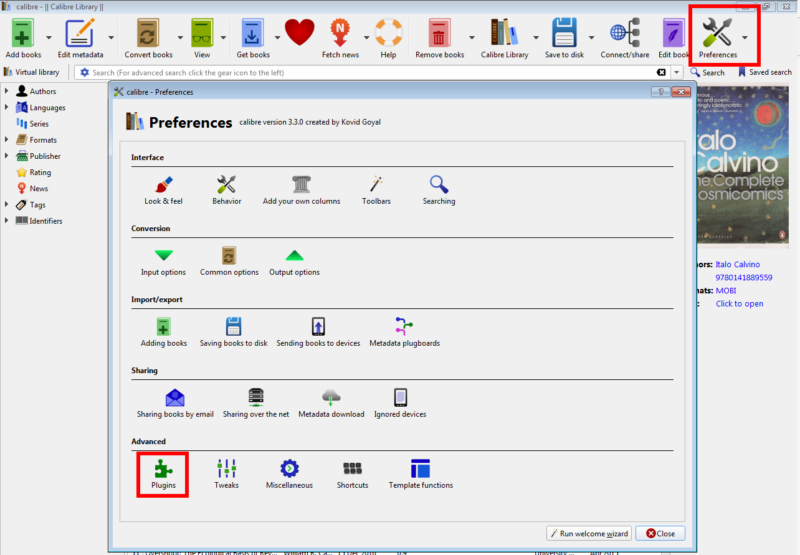
Open Calibre, then go to Preferences → Plugins → Load plugin from file.
Here’s where people run into trouble: you need to navigate inside the downloaded ZIP to find the actual plugin file. Open the archive you downloaded and look inside — you’ll find a file called DeDRM_plugin.zip. That’s the file you want to load into Calibre, not the outer archive.
The full path inside the archive looks something like: DeDRM_tools_X.X.X.zip → DeDRM_calibre_plugin → DeDRM_plugin.zip
Extract just that inner DeDRM_plugin.zip to your desktop or downloads folder, then point Calibre’s plugin loader at that file.
If Calibre throws an error like InvalidPlugin: The plugin ... is invalid. It does not contain a top-level __init__.py file, you’ve loaded the outer archive instead of the inner plugin ZIP. Go back and extract the inner file.
Once the plugin loads successfully, restart Calibre. The plugin won’t be active until you do.
Step 4: Get an Older Version of the Kindle Desktop App
This step matters more than people expect. Amazon’s newer Kindle desktop apps download books in KFX format, which is a newer Kindle format that can be harder to work with. Older app versions download books as .azw or .azw3 files, which the DeDRM plugin handles cleanly.
The recommended versions are:
- Mac: Kindle for Mac 1.17 — this is the last version that reliably downloads in the older format on macOS
- Windows: Kindle for PC 1.26 — same reasoning on Windows
You can find these older versions on sites like MobileRead forums or via direct archive links that circulate in the ebook community. Uninstall any newer version of the Kindle app first, then install the older one. When prompted to update, decline.
The KFX workaround: If you’re working with a newer app version or already have KFX files, you can still strip DRM — but you’ll also need the KFX Input plugin for Calibre, available from the MobileRead forums. Install it the same way as DeDRM. With both plugins installed, Calibre can handle KFX files on import.
Step 5: Download Your Books via the Kindle Desktop App
Open the older Kindle app and sign into your Amazon account. Your library will populate. Right-click on any book and choose Download (the option name varies slightly by version).
Downloaded books are stored locally on your machine. On Mac, you’ll find them in ~/Library/Containers/com.amazon.Kindle/Data/Library/Application Support/Kindle/My Kindle Content/. On Windows, look in My Documents\My Kindle Content\ or %LOCALAPPDATA%\Amazon\Kindle\content\.
Each book will be a folder containing an .azw or .azw3 file along with some metadata files.
Step 6: Import into Calibre
With the DeDRM plugin installed and Calibre restarted, drag the .azw or .azw3 files into your Calibre library — or use Add books to import them. The DRM is stripped automatically during the import process. There’s no separate “remove DRM” step to trigger.
If a book imports but still shows as DRM-protected when you try to convert it, something went wrong with the plugin setup. Double-check that you loaded the correct inner ZIP file and that you restarted Calibre after installing.
Step 7: Convert to Your Preferred Format
Once your book is in Calibre without DRM, you can convert it to any format: EPUB, MOBI, PDF, AZW3, or anything else Calibre supports. Right-click the book in your library, choose Convert books, pick your output format, and hit OK.
EPUB is the most universally compatible format and the best choice for reading on non-Kindle devices (Kobo, Apple Books, any e-reader running standard software).
Why Amazon Keeps Making This Harder
Amazon has been steadily tightening the screws on local book access. In recent years they removed the ability to download books directly from the Amazon website, pushing everything through the Kindle apps. They’ve introduced newer formats that are harder to work with. The direction of travel is clear: they want your library to live in their cloud, not on your device.
That’s exactly why having a local, DRM-free backup of books you’ve paid for makes sense. Kindle accounts get banned for various reasons, titles get pulled from stores, and licensing agreements between publishers and Amazon expire. Any of those events can result in books you paid for disappearing from your library.
This process is worth doing for any book you genuinely want to own.
Related








I’m trying to follow these instructions, but when I click on a book in Kindle 1.26, it says I have to update, and won’t download.
Is there any new workaround?
Does anyone know of a current way to convert drm restricted Amazon magazine subscription files on a Mac, without the need for a virtual PC installation? Any common universal format such as epub or pdf would be nice. I don’t have a Kindle and don’t want to install some proprietary Kindle app on every device that I’d like to read on.
I find it ridiculous that Amazon offers only Kindle format for digital magazine subscriptions / requires a special Kindle app on every device you want to read on / and worst of all, if you decide to cancel your subscription you can’t even access the magazine issues that you already paid for. The main purpose of buying a guitar magazine is to have access to the guitar tabs when needed. I’d even pay more if they allowed for this. Printed copies take up a lot of space, show up damaged in the mail and aren’t as accessible as digital.
Anyway, I figured I’d mention these gripes in the off-chance someone at Amazon decides to research why people are wanting to remove their stupid drm restrictions in the first place. If anyone has any suggestions for Mac users, please do share. I’d like to make sure there’s a way before I drop money on a subscription I won’t have future access to. Thanks.
I Just tested https://www.ebook-converter.com on mac and it works, the trial version creates a pdf file with marks about buying the complete version of the converter, but it works
I’ve been doing this for years and now it has stopped working.
We need to wait for some updates or use older versions combinations. It works for me with the older versions.
In 2021 – I just went through everything I could find on removing DRM from Amazon books. and even though I have a v10 Kindle, I’m not finding any way to import to Caliber, or remove DRM, that is current and working.
Even “Download and transfer via USB” does not work.
I’m stubborn and will stop buying books on Amazon if I can’t get them into Caliber, convert to epub, load onto whatever device I want, usually my phone because that is what is with me when I get a chance to read.
It is not working anymore