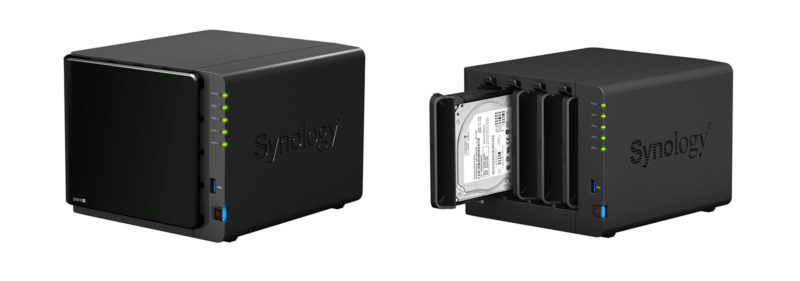
The Synology DiskStation is a great tool for backing up your files and acting as a central media storage device. Since it will host so much important data — family photos, documents, backups of all your devices — securing it properly is critical.
Out of the box, a Synology NAS is reasonably secure, but there are several steps you should take to harden it against both automated attacks and more targeted threats. Here’s what I recommend based on years of running my own DiskStation.
Disable the Default Admin Account
The default “admin” account is the first thing bots and attackers try. Create a new administrator account with a unique username, then disable the built-in admin account entirely. You can do this in Control Panel → User & Group → select “admin” → Edit → check “Disable this account.”
Only use the admin account for system administration through DSM. For everyday access (file sharing, media streaming), create a separate standard user account with limited permissions.
Enable Auto Block
Auto Block is Synology’s built-in brute force protection. It automatically blocks IP addresses after a specified number of failed login attempts.
Go to Control Panel → Security → Protection → Enable auto block. I use 3 failed attempts within 60 minutes as my threshold. You can also enable block expiration if you want IPs to be unblocked after a set period, but I prefer to keep blocks permanent and manually unblock if needed.
Enable Two-Factor Authentication (2FA)
This is arguably the single most important security measure. Even if someone gets your password, they can’t log in without the second factor.
Go to Control Panel → Security → Account → 2-Factor Authentication. Synology supports authenticator apps (Google Authenticator, Authy, etc.) and hardware security keys. Enable it for all admin accounts at minimum. I’d recommend enabling it for all users.
Change Default Ports
Synology DSM uses ports 5000 (HTTP) and 5001 (HTTPS) by default. These are well-known and specifically targeted by automated scanners. Change them to non-standard port numbers in Control Panel → Login Portal → DSM.
While security through obscurity isn’t a complete solution, it significantly reduces the volume of automated attacks hitting your NAS.
Force HTTPS
Set up an SSL certificate and force all connections to use HTTPS. Synology makes this easy — you can get a free Let’s Encrypt certificate directly through DSM (Control Panel → Security → Certificate). Once your certificate is installed, enable “Automatically redirect HTTP connections to HTTPS” in the same section.
Synology has a detailed guide on setting up HTTPS and certificates.
Configure the Firewall
DSM has a built-in firewall that most people never touch. Go to Control Panel → Security → Firewall → Create firewall rules that only allow traffic from your local network and any specific IPs you need for remote access.
A sensible default: deny all incoming traffic, then create allow rules for your local subnet (e.g., 192.168.1.0/255.255.255.0) and any VPN IP ranges you use.
Avoid Exposing Your NAS to the Internet
This is the most effective security measure of all — simply don’t make your NAS accessible from the public internet.
- Disable QuickConnect unless you absolutely need it. QuickConnect routes your traffic through Synology’s relay servers, which adds a potential attack surface.
- No port forwarding on your router. If your NAS isn’t reachable from the internet, remote attacks become essentially impossible.
- Use a VPN instead. If you need remote access, set up a VPN on your router (or on the NAS itself using the VPN Server package). Connect to your home network via VPN, and then access the NAS as if you were on the local network. This is far more secure than exposing DSM to the internet.
You can still map the NAS to a static local IP so it doesn’t change when it reboots — just set a DHCP reservation in your router settings.
Keep DSM and Packages Updated
Synology regularly releases security patches for DSM and its packages. Enable automatic updates for critical updates at minimum (Control Panel → Update & Restore → Update Settings). Vulnerabilities in NAS devices are actively exploited — there have been several high-profile ransomware campaigns targeting Synology and QNAP devices with outdated firmware.
Disable Unused Services
Every running service is a potential entry point. Go through your installed packages and disable anything you’re not actively using. Common candidates: FTP server, Telnet, SSH (unless you need command-line access), SNMP, and any media server packages you’ve installed but aren’t using.
Set Up Proper Backups
Security isn’t just about preventing unauthorized access — it’s also about recovering from worst-case scenarios. Follow the 3-2-1 backup rule:
- 3 copies of your data
- 2 different storage media (e.g., your NAS + an external drive)
- 1 offsite copy (e.g., Backblaze B2, Synology C2, or another NAS at a different location)
Synology’s Hyper Backup package makes this straightforward to automate.
Quick Security Checklist
- ☐ Disable the default admin account; create a new admin with a unique name
- ☐ Enable auto block (3 attempts / 60 minutes)
- ☐ Enable 2FA for all admin accounts
- ☐ Change default HTTP/HTTPS ports
- ☐ Install an SSL certificate and force HTTPS
- ☐ Configure the firewall to restrict access
- ☐ Disable QuickConnect and port forwarding
- ☐ Set up VPN for remote access
- ☐ Enable automatic security updates
- ☐ Disable unused services and packages
- ☐ Set up 3-2-1 backups with Hyper Backup

Any other tips that you know about? Let me know in the comments.
Related





Hi,
Great post, thanks!
I would also suggest enabling 2 factor authentication, as additional security layer,
However I do not really get the point of this one…
“No port forwarding on the router. You can map the NAS to an IP locally so it doesn’t change when it reboots.”
How else am I supposed to use File Station, Download Station, Audio Station etc? Setting up VPN to listen to some music from my NAS seems a bit of an overkill to me.
Regards,
Janos
Hi, great post – already applied most of your tips. Can you explain, however, this one:
No port forwarding on the router. You can map the NAS to an IP locally so it doesn’t change when it reboots.
Hi, Nice post
Synology DiskStation can be used in homes and institutions to store large amounts of data in a central location. Users can access this information through a local area network (LAN). The idea is to provide a single file copy for multiple users.
Thanks for sharing.
Forget remote access without VPN. Too risky.
Agreed Jean however without a fixed IP disabling Quickconnect does not allow for remote access. Being using Synology for 3 years now and very satisfied
cheers
Joe
That’s correct, Quickconnect is the easiest way to access the Synology remotely. I will also be looking into VPNs as a potential alternative.
Actually with DDNS, you can use a VPN reliably without your router having a fixed IP address. (your VPN client configuration can use the DDNS name rather than IP address)
Either run OpenVPN on your router, or on the NAS and port forward from your router. Note if you choose the latter, the NAS should have a static IP address.
Also, nix UPnP on your router. No need to let devices in hour house decide what ports they need open for the outside world to connect to without your knowing.