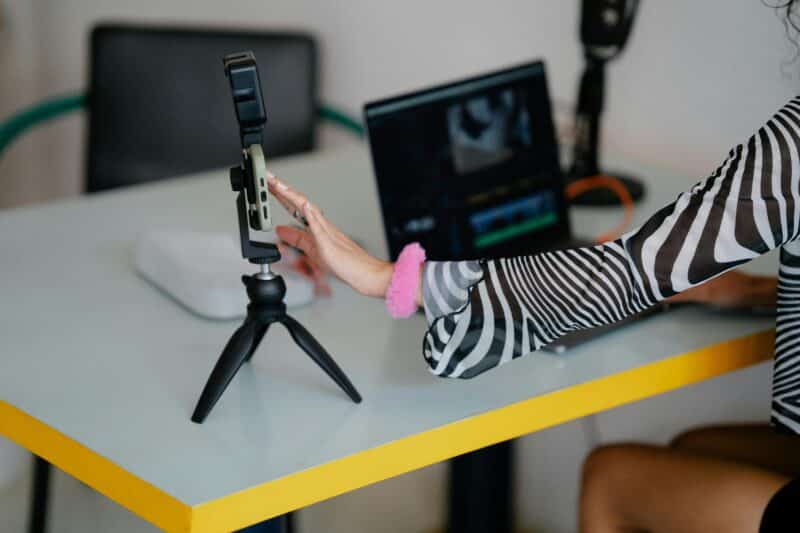
 Most people massively overcomplicate video creation.
They search for a single tool that does everything: recording, editing, captions, podcast production, social clips, YouTube videos, and tutorials. The result is usually a slow workflow and lots of friction.
A much better approach is to use a small stack of tools where each one does a specific job extremely well. The goal isn’t maximum power — it’s maximum speed from idea to published video.
Below is the workflow I’ve settled on for creating:
- family videos
- quick commentary videos
- LinkedIn explainers
- remote podcasts
- short-form clips for social media
The focus is simple: get results fast.
The Core Principle: Separate Recording From Editing
One mistake many creators make is trying to use the same software for recording and editing everything.
Instead, the fastest workflow usually looks like this:
- Use specialized tools for recording
- Use specialized tools for editing
- Use mobile editing when speed matters
- Use desktop editing only when necessary
This dramatically reduces friction.
Mobile Editing for Fast Videos
InShot: The Fastest Way to Assemble Clips
For quick videos captured on the phone, InShot is one of the fastest editors available.
It excels at:
- trimming clips
- rearranging footage
- adding music
- simple titles
- exporting in multiple formats
There’s very little complexity in the interface, which makes it perfect for things like:
- family montages
- quick vlogs
- travel clips
- short YouTube uploads
A typical workflow takes just a few minutes:
- Import clips from your camera roll
- Trim the sections you want
- Add background music
- Add a title or caption
- Export
The result is a clean video without spending an hour editing.
CapCut: Best for Captioned Talking Videos
While InShot is ideal for quick edits, CapCut shines when you need features like:
- automatic captions
- social video formatting
- more advanced editing tools
It’s particularly useful for:
- commentary videos
- walking and talking clips
- short-form content
- clips for social media
In practice, many creators end up using InShot for simple edits and CapCut for caption-heavy videos.
Screen Recording and Tutorials
For screen demonstrations and explainers, the best option I’ve found is Screen Studio.
It automatically creates:
- smooth zooms
- cursor highlights
- motion framing
- polished camera overlays
This makes it ideal for:
- LinkedIn videos
- product walkthroughs
- software tutorials
If you need heavier editing or annotations (arrows, callouts, step-by-step tutorials), Camtasia is a solid alternative.
Recording Podcasts With Guests
For remote podcast interviews, reliability is critical.
A great tool for this is Riverside, which records each participant locally instead of relying entirely on internet quality.
Advantages include:
- separate audio tracks
- high-resolution video
- reliable recordings even with poor internet
- simple guest onboarding
This makes it well suited for remote conversations and interviews.
Editing Podcasts Quickly
Once the recording is done, editing should be as fast as possible.
That’s where Descript really shines.
Descript allows you to edit video by editing the transcript. Delete a sentence from the text and it disappears from the video.
Key features include:
- transcript-based editing
- filler word removal
- automatic captions
- clip generation for social media
The workflow typically looks like this:
- Import the podcast recording
- Edit the transcript
- Export the full episode
- Generate short clips for social media
This makes podcast production dramatically faster than traditional editing.
When You Need More Advanced Editing
Occasionally a video deserves a more polished edit — for example a full YouTube episode or a more cinematic video.
In those cases, Final Cut Pro is an excellent choice for Mac users.
Compared with other professional editors, Final Cut tends to be:
- faster to work in
- highly optimized for Mac hardware
- ideal for longer timelines
That said, it’s best used only when needed. For many everyday videos, mobile editing apps are significantly faster.
Shooting Strategy for iPhone Creators
If you’re filming primarily with an iPhone, a flexible capture strategy helps you produce both long-form and short-form content.
Recommended default settings:
- 4K resolution
- 30 frames per second
Content strategy:
- Record important scenes horizontally (16:9) for YouTube.
- Capture key moments vertically (9:16) for Shorts or Reels.
- Keep subjects centered so footage can be cropped easily later.
This approach allows a single outing to produce:
- one longer YouTube video
- several short-form clips
- social media highlights
A Minimal Video Creation Stack
A fast creator workflow might look like this:
| Mobile editing | InShot |
| Captioned talking videos | CapCut |
| Screen tutorials | Screen Studio |
| Remote podcast recording | Riverside |
| Podcast editing and clip creation | Descript |
| Advanced editing when needed | Final Cut Pro |
Each tool focuses on a specific stage of production, which keeps the workflow simple.
Speed Beats Perfection
The biggest obstacle to creating videos isn’t technical skill — it’s consistency.
A lightweight workflow dramatically increases the chance that videos actually get published.
Instead of optimizing for perfect production quality, focus on:
- speed
- clarity
- frequency
A simple stack that gets content out the door will outperform a complex setup almost every time.
Related







Leave a Reply