Katina is a link manager for WordPress. You create a short link on your own domain, such as /go/kinsta/, and it redirects to the long partner URL. When a partner changes your tracking code or a program closes, you fix the destination in one place and every post stays correct. It counts clicks, flags broken destinations, and sets nofollow, sponsored and new-tab attributes for you. It’s for anyone who runs affiliate links or partner referrals. I built it, and it handles the affiliate links on this site.

Download Katina free on WordPress.org or get Katina Pro free on GitHub.
What the Free Plugin Does
- Cloaked links at
/go/your-link/with 301, 302 or 307 redirects, set per link or as a site default - Nofollow, sponsored and extra rel values, new-tab behavior and CSS classes, per link or site-wide
- Click tracking with bot filtering, no IP addresses stored by default, and automatic deletion of old click records
- A dashboard, and a Reports screen with clicks per day, top referrers and top countries, for one link or all of them
- Link categories and tags, plus CSV import and export
- A block for the block editor that searches your links by title
- Optional link health checks that mark broken destinations, including links that redirect to a “merchant closed” page
- A Link Index that reads every internal, external and cloaked link out of your content and flags orphan pages
- Rules for links to other sites: open in a new tab, add nofollow, noreferrer or ugc, skip domains you trust
- A Link Fixer that corrects link attributes on cached pages
- Migration from ThirstyAffiliates, Pretty Links, LinkCentral and Easy Affiliate Links
Redirects send an X-Robots-Tag: noindex, nofollow header, and the link prefix is disallowed in robots.txt so crawlers don’t spend budget on them. The plugin shows no upsell banners and no review prompts.
What Pro Adds
Katina Pro is for sites that earn from affiliate links. It puts links into your posts for you, finds pages that deserve more of them, and shows what each link earns:
- Smart Auto-Linking, which adds your Katina links to post content wherever a link’s title appears
- Link Opportunities, which pairs orphan pages with posts that already mention them and inserts the link in one click
- AI link suggestions in the block editor sidebar, using your own OpenAI or Anthropic API key
- Coupons and deals: a Coupons post type, a
[katina_coupons]shortcode and block, view, copy and click counts, and an importer for the Affiliate Coupons plugin - Revenue tracking per link and month, with earnings per click shown in the link list
Get Katina Pro from GitHub. It’s free while it’s in early access. It needs the free plugin active, and updates show up on the WordPress Updates screen.
Installation
Install the free plugin
- In WordPress, go to Plugins > Add New and search for Katina Link Manager, or download it from WordPress.org and upload the zip.
- Activate it. The setup wizard opens and detects other link plugins on your site.
It needs WordPress 6.2 or later and PHP 8.0 or later.
Install Katina Pro
- Download
katina-link-manager-pro.zipfrom the latest release on GitHub. - Go to Plugins > Add New > Upload Plugin, upload the zip and activate it.
Pro needs the free plugin installed and active, WordPress 6.2 or later and PHP 8.0 or later.
Documentation
Everything lives under the Katina Link Manager menu in wp-admin: Dashboard, All Links, Add New Link, Link Categories, Link Tags, Settings, Link Index, Reports and Tools. Pro adds Coupons & Deals, Link Opportunities, Import Coupons and Revenue.
Run the setup wizard
On activation Katina opens its setup screen. It detects ThirstyAffiliates, Pretty Links, LinkCentral and Easy Affiliate Links and offers to import them. It also shows what your links will look like, for example https://yoursite.com/go/your-link/. Click Finish Setup, or use the Skip setup link and come back later. Until you’ve created links or dismissed it, a setup notice stays in the admin.
Create a cloaked link

- Go to Katina Link Manager > Add New Link.
- Type a title. Pro’s auto-linking uses the title as the keyword, so write it the way you’d write it in a sentence, such as “Kinsta Hosting”.
- Paste the Destination URL. Percent-encoded characters such as
%2Bare kept as you typed them. - Copy the Cloaked URL with the Copy button and publish.
The Link Settings box has these fields. Each dropdown starts at Default, which shows the site-wide value in brackets and follows it if you change it later.
- Redirect Type: 301 (Permanent), 302 (Temporary) or 307 (Temporary Strict)
- Nofollow: Yes or No
- Sponsored: Yes or No, which adds
rel="sponsored" - Open in New Window: Yes or No
- Pass Query Strings: forwards the query string of the visited short link on to the destination
- CSS Classes: optional classes added to the link
- Additional Rel Tags: space-separated values such as
ugc. Nofollow and sponsored have their own settings.
A Click Statistics box on the same screen shows total clicks, the last 30 days and the last 7 days.
Set site-wide defaults
Go to Katina Link Manager > Settings > General. The Link Defaults section holds URL Prefix, Default Redirect Type, Default Nofollow, Default Sponsored, Default Open in New Window, Apply to Links in Content and Default Pass Query Strings. The out-of-the-box values are prefix go, redirect 307, nofollow Yes, sponsored No, new window Yes and pass query strings No.
Default Sponsored has a third choice, Never. It removes rel="sponsored" from every link, including links set to Yes and custom rel values.
Changing the URL prefix breaks every cloaked URL you’ve already published on your site or elsewhere, so pick it once. Katina warns you on that screen.
Organize links with categories and tags
Link Categories and Link Tags work like post categories and tags. Assign them in the boxes on the Edit Link screen, or in bulk through CSV import. Both show as columns in the link list, which you can search and sort by clicks.
Insert links in posts
In the block editor, add the Katina Link Manager Link block, type two or more letters to search your links by title, and pick one. You can edit the visible link text, and Change swaps the link. The block saves the cloaked URL. You can also paste a cloaked URL into any link field.
Apply rel and new-window settings to links in content
Links you paste into a post by hand, such as https://yoursite.com/go/kinsta/, get the link’s nofollow, sponsored and new-window settings when the page renders. Attributes already on the link are kept. Turn this off with Apply to Links in Content under Settings > General.
The Link Fixer, under Settings > Modules, runs a small script on your public pages. It asks the server for the current settings of every Katina link on the page and updates href, rel, target and class in the browser. This keeps old cached pages correct after you change a link. It’s enabled by default, and you can disable it on the Modules tab.
Handle external links
The External Links section on Settings > General applies rules to links that point to other sites, in post content and, optionally, comments.
- Open in New Tab: opens links to other sites in a new tab, unless the link already sets a target
- Add rel Values: nofollow, noreferrer and ugc checkboxes. Values already on a link are kept.
- Excluded Domains: one per line. These domains and their subdomains are left alone.
- Apply to Comments: Yes or No
Track clicks and read reports

Click tracking is on by default. The Tracking tab under Settings has these options.
- Enable Click Tracking: Yes or No
- Disable IP Collection (GDPR): Yes is the default, and I’d leave it on
- Excluded Bots: one user-agent fragment per line. Clicks from matching agents, and from requests with no user agent, are stored as bot clicks and left out of the numbers. The list starts with common crawlers and SEO tools.
- Click Log Retention (days): records older than this are deleted each day. The default is 365, and 0 keeps them forever.
The Dashboard shows total links, total clicks, clicks in the last 30 and 7 days, link health counts and your top links of the last 30 days.
Reports shows clicks per day as a chart, top referrers, top countries and top links. Pick a From and To date or one of the presets (Last 7 days, Last 30 days, Last 90 days, Last 365 days, This month, Last month, Year to date), filter by a single link, and use Export CSV for the clicks in the selected range. The chart is drawn on the server as inline SVG, so no charting library loads.
Country data needs two things: Disable IP Collection set to No, and the PHP GeoIP extension on your server. Without both, the Top countries table stays empty.
Monitor link health
Link health checks are off by default because they send requests from your server to every destination. To start them, go to Settings > Modules and set Link Health Checks to Enabled. Katina then checks your links in the background twice a day, and the Dashboard has a Recheck All Links Now button.
The Health column in the link list shows Healthy, Broken, Unknown or a server error, with the HTTP code. Hover a badge to see why a link was flagged. A few rules decide the status.
- Only 404 and 410 count as broken. Refusals such as 401, 403 and 429 get a retry with a browser profile, and if they persist the link is marked Unknown for you to check by hand, since affiliate networks often block automated requests.
- Katina follows up to five redirects and judges where the chain ends. A destination that lands on a “merchant closed” page, a generic comparison page, a private form, a closure notice or a “not found” page is marked Broken even if it answers 200.
- A link that ends up on another site with none of its tracking parameters is flagged for review, since that usually means the program dropped it.
On the Dashboard, the Healthy, Broken / Error, Server Error and Unchecked cards each open the link list filtered to that status.
Audit internal links with the Link Index

- Go to Katina Link Manager > Link Index and click Scan site. Scanning runs in batches from the screen, so large sites don’t time out.
- Read the table: for each post, page and custom post type you get incoming internal links, outgoing internal links, external links and managed (cloaked) links. Sort by any column, filter by post type, search titles, or tick Orphans only.
- Export with Export CSV, Export CSV + SEO meta (adds the SEO title and description from Yoast, Rank Math or SEOPress) or Export JSON.
Katina reads links straight from the database, so drafts, private posts, password-protected pages and noindexed pages are all included. A crawler sees none of those. A post is reindexed when you save it, so you only need Rescan site after bulk changes.
Import and export links
Go to Katina Link Manager > Tools > Import / Export. Export CSV downloads every link as a UTF-8 file that opens correctly in Excel. Import CSV takes a file with these columns, and only title and destination_url are required.
title, slug, destination_url, redirect_type, nofollow, sponsored, new_window, pass_query_str, css_classes, rel_tags, categories, tags, statusExisting slugs are skipped. Separate several categories or tags with a pipe, as in Finance|Investing. Download sample CSV gives you a ready-made template.
Migrate from another link plugin
Katina imports links and click history from ThirstyAffiliates, Pretty Links, LinkCentral and Easy Affiliate Links. Use the setup wizard, or go to Tools > Migrate and click Import data next to the plugin it detected. If the old plugin is deactivated but its data is still in your database, Katina offers the import and also a Clean up button that deletes the leftovers.
Coming from ThirstyAffiliates, Katina adopts its URL prefix and global defaults when it has no links yet, so existing cloaked URLs keep working. With ThirstyAffiliates deactivated, its shortcodes and <ta> tags still render as proper Katina links without editing your posts. Draft links stay drafts, and the click import can be rerun to pick up new clicks.
The same migration runs from WP-CLI. Use --dry-run to preview, --adopt-prefix for the ThirstyAffiliates settings and --rewrite-content to replace the old shortcodes and tags in post content with Katina links.
wp katina-link-manager migrate thirstyaffiliates --dry-run
wp katina-link-manager migrate thirstyaffiliates --adopt-prefix
The source can be thirstyaffiliates, prettylinks, linkcentral or easyaffiliatelinks.
Privacy
With the defaults, Katina stores the time of a click, the referrer, a hash of the user agent and a bot flag, and no IP address. It plugs into WordPress’s personal data export and erase tools for the click log, and it adds suggested text to the privacy policy guide. The text also covers link health checks and, when Pro’s AI features are on, the provider that receives post excerpts.
WP-CLI, REST and hooks
Besides migrate, Katina adds wp katina-link-manager trash <id>... and untrash <id>..., since wp post delete can’t trash custom post types and needs --force to delete them permanently.
Links are a custom post type, katina_link, exposed at /wp-json/wp/v2/katina-links, with taxonomies katina_category and katina_tag.
Filters you can use: katina_link_index_post_types, katina_link_index_post_statuses and katina_link_index_content adjust what the Link Index scans. katina_content_scanner_include_all_statuses widens the content scanner. katina_health_dead_end_url_patterns and katina_health_dead_end_phrases add your own “dead destination” rules. katina_thirstyaffiliates_compat turns the ThirstyAffiliates shortcode support off.
Set up the AI provider (Pro)

Go to Katina Link Manager > Settings > Pro. Choose OpenAI or Anthropic as the AI Provider and paste your API Key. The key is stored on your site and used only for direct calls to that provider. To keep it out of the database, add this to wp-config.php, and the field disappears:
define( 'KATINA_PRO_AI_API_KEY', 'sk-...' );The same screen has three toggles, all disabled by default: Link Suggestions, Smart Auto-Linking and Auto-Link Orphan Pages. Katina shows a privacy notice here, because with a key set, excerpts of your post content go to the provider you picked. Add a disclosure to your privacy policy before enabling them if you serve EU or UK visitors.
Link keywords automatically with Smart Auto-Linking (Pro)
- Set Smart Auto-Linking to Enabled on the Pro tab.
- Name your links with the keyword you want linked. A link titled “Kinsta Hosting” links the first mention of “Kinsta Hosting” in each post.
- View a post on the front end. Katina works out the links in the background with WP-Cron, caches the result for that post, and refreshes it when the post changes. Page loads never wait on the AI provider.
Auto-linking applies to single posts and pages, not feeds or archives. It links only the first match, uses the link’s own rel and new-window settings, and doesn’t touch text that’s already inside a link.
With an API key set, the provider reads a short excerpt of the post and decides whether each keyword is relevant enough to link. Without a key, Katina links every match. Password-protected posts are never sent to a provider.
Auto-Link Orphan Pages lets Smart Auto-Linking also point at orphan pages from the Link Index, using the page title as the keyword. It needs Smart Auto-Linking on and at least one completed scan.
Get link suggestions while you write (Pro)
Set Link Suggestions to Enabled and save an API key. In the block editor, open the Katina Link Manager Suggestions panel in the sidebar to see Suggested Links for the post you’re editing, and insert one as a link. Suggestions come from your published Katina links and are cached until the content changes. Each user can refresh up to 10 times an hour, and over the limit the editor shows the last cached suggestions.
Fix orphan pages with Link Opportunities (Pro)

- Run a scan on Link Index first. Opportunities are built from it.
- Go to Katina Link Manager > Link Opportunities. Each card is a page with no incoming internal links, with the posts that already mention it.
- Click Insert link next to a post. Katina edits that post’s content and links the first unlinked mention.
The match phrase is the page title, cut at the first dash or colon, with a trailing bracketed part removed. To change it, type a different phrase in the Link opportunity keyword box in the page editor’s sidebar. The screen checks a few pages per load, so reload it to work through a long list. Use the post type dropdown to filter.
Add coupons and deals (Pro)
- Go to Katina Link Manager > Coupons & Deals > Add New Coupon.
- Fill in the Coupon details box: Description, Coupon code (leave it empty for a deal that needs no code), Discount label such as “30% off”, and the Katina link, which you pick by searching link titles. The coupon button goes through that link, so its clicks are tracked.
- Set a Start date and an Expiry date if the offer is time-limited. The coupon shows through the end of the expiry day in your site’s time zone. Leave both empty for no schedule.
- Under Display, tick “Hide the code behind a ‘Show code’ button” to reveal the code on click, and tick Featured for a label and a highlighted border.
- Set a logo as the featured image, assign Coupon Categories and Coupon Tags, and use the Order field in Post Attributes for manual sorting.
Show coupons with the shortcode or block (Pro)
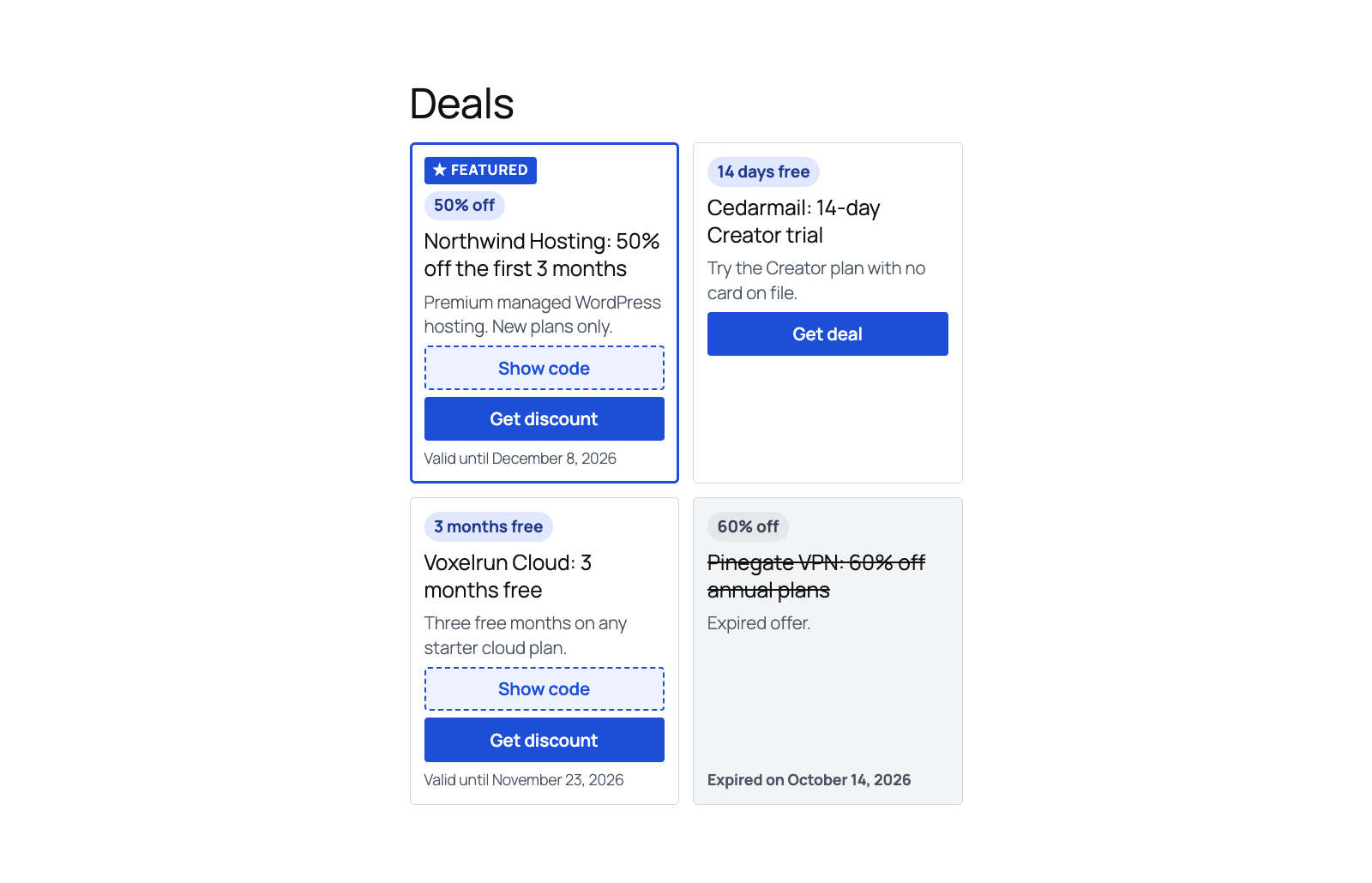
Add the Katina Coupons block, or the shortcode below. Both take the same attributes.
[katina_coupons category="hosting" columns="2" orderby="featured" expired="show"]ids: comma-separated coupon IDs, shown in that ordercategoryandtag: comma-separated slugslimit: how many to show. The default is 12, and 0 means all, up to 100.layout:grid(default) orlistcolumns: 1 to 4. The default is 3.expired:hide(default) orshow. Expired coupons that you show appear struck through and without a button.orderby:date(default),title,expires,menu_orderorfeaturedreveal:yesorno, which overrides each coupon’s own “Show code” setting
Track coupon views, copies and clicks (Pro)
Each coupon edit screen has a Coupon stats box with Views, Copies and Clicks, and the coupon list has matching columns. The counts come from a small public REST endpoint at /wp-json/katina-link-manager-pro/v1/coupon-event, which works on fully cached pages because it doesn’t need a nonce. It limits requests per coupon per minute and, when IP collection is on, per visitor, using a hash of the IP rather than the address.
Import coupons from Affiliate Coupons (Pro)
Go to Katina Link Manager > Import Coupons. The screen counts the Affiliate Coupons coupons it finds and has a Dry run checkbox ticked by default. Click Run import to see what would happen, then untick it and run again to write. Each coupon’s URL is matched to an existing Katina link by destination, and a link is created if none matches. Coupons already imported are skipped, so you can rerun it safely.
Once the old plugin is gone, [affcoups] and [affcoups_coupons] shortcodes in your posts render from the imported coupons without edits. From WP-CLI:
wp katina-link-manager import-coupons --dry-run
wp katina-link-manager import-coupons --limit=50
Track revenue and earnings per click (Pro)
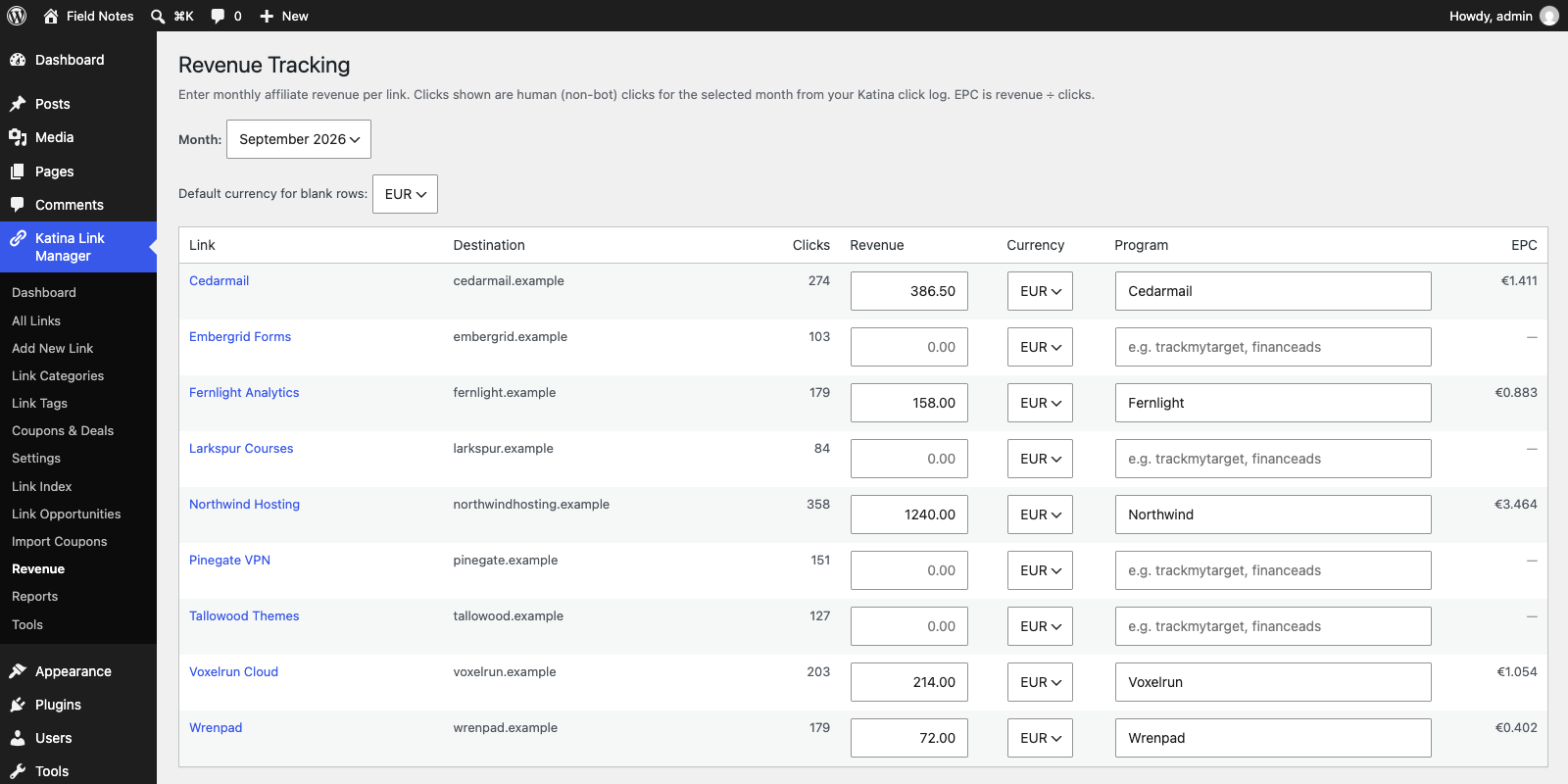
- Go to Katina Link Manager > Revenue and pick a month. The last 12 are available.
- Next to each link, type the revenue you earned that month, choose a currency (EUR, USD or GBP) and, if you like, a program name.
- Save. Katina shows human clicks for that month from your click log, and EPC, which is revenue divided by clicks.
The link list also gets Revenue (last month) and EPC (last month) columns.
Pro REST API and hooks
Suggestions are available at GET /wp-json/katina-link-manager-pro/v1/suggestions/<post_id> and refreshed with POST .../suggestions/<post_id>/refresh. Both require permission to edit that post. Coupons are a custom post type, katina_coupon, at /wp-json/wp/v2/katina-coupons. Two filters exist: katina_pro_coupon_cta_label changes the coupon button text, and katina_pro_affcoups_compat turns off the [affcoups] shortcode support.
FAQ
Do I need the free plugin to run Pro?
Yes. Pro builds on the free plugin’s links, click log and Link Index, so Katina Link Manager has to be installed and active. Link Opportunities needs free version 1.3.0 or later, and Pro shows a notice if yours is older.
Will changing the URL prefix break my links?
Yes. The prefix is part of every cloaked URL, so links already published in posts, emails and social profiles stop working. Pick the prefix before you start. If you’re migrating from ThirstyAffiliates, Katina adopts its prefix for you.
Does Katina slow down redirects?
On PHP-FPM, Katina sends the redirect first, closes the connection, and then writes the click to the database, so the write doesn’t sit on the visitor’s path. On other hosts, Katina logs the click before redirecting.
Is click tracking GDPR-friendly?
By default no IP address is stored, old clicks are deleted after 365 days, and the click log connects to WordPress’s data export and erase tools. Whether your setup is compliant depends on your own policy and jurisdiction, so check it with whoever handles that for you.
Does Katina send my content to an AI provider?
Only if you enable Link Suggestions or Smart Auto-Linking in Pro and save an API key. Both are disabled by default. Without a key, Smart Auto-Linking links every keyword match locally and sends nothing anywhere.
Why is my Top countries table empty?
Country lookup runs only when Disable IP Collection is set to No, and it relies on the PHP GeoIP extension. With the default settings no country is recorded.
Katina is one of the WordPress plugins I build. For the companies and projects behind them, see my projects page.