 Is your WordPress site failing Core Web Vitals? You’re not alone. Google’s performance metrics have become increasingly important for both SEO and user experience, and many WordPress sites struggle to meet these standards.
In this comprehensive guide, I’ll walk you through the exact steps I used to take my site from failing Core Web Vitals to passing—with a focus on fixing the most common culprit: Cumulative Layout Shift (CLS).
Understanding Core Web Vitals
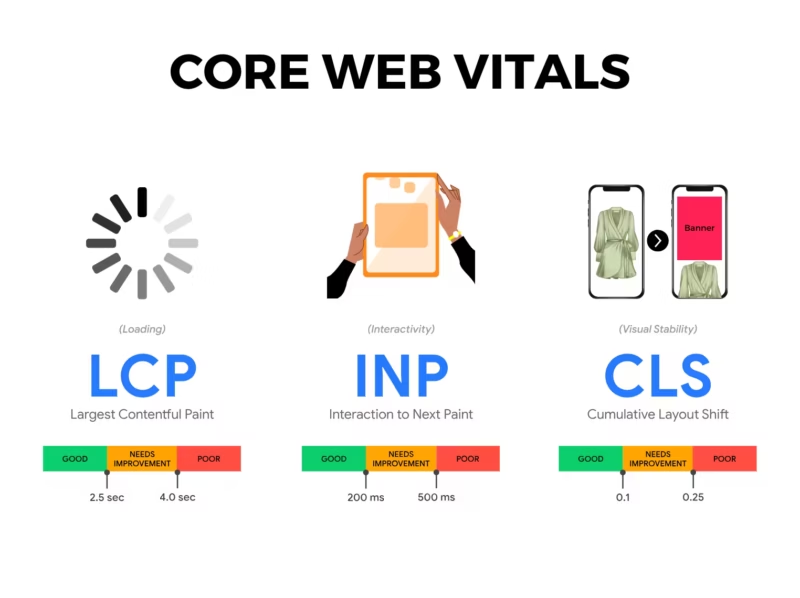
Core Web Vitals are a set of specific metrics that Google uses to measure user experience. The three main metrics are:
Largest Contentful Paint (LCP) measures loading performance. To provide a good user experience, LCP should occur within 2.5 seconds of when the page first starts loading.
Interaction to Next Paint (INP) measures interactivity. Pages should have an INP of 200 milliseconds or less to ensure a responsive experience.
Cumulative Layout Shift (CLS) measures visual stability. Pages should maintain a CLS of 0.1 or less to avoid frustrating unexpected layout shifts.
The Most Common Problem: CLS
After auditing dozens of WordPress sites over the years, I’ve found that CLS is by far the most common reason for failing Core Web Vitals. The primary causes include:
Images without dimensions – When browsers don’t know the size of an image before it loads, the page layout shifts as images appear. This is often the biggest contributor to CLS issues.
Web fonts causing FOUT/FOIT – When custom fonts load, they can cause text to reflow, creating layout shifts.
Dynamic content injection – Ads, embeds, and dynamically loaded content that pushes existing content around.
Third-party scripts – Analytics, chat widgets, and other scripts that modify the DOM after initial load.
The Solution: A Systematic Approach
Rather than randomly trying different optimization plugins, I recommend a systematic approach using a single, well-designed performance plugin. My tool of choice is Perfmatters, but similar results can be achieved with other optimization plugins.
Step 1: Fix Image Loading Issues
The single most impactful change you can make is enabling “Add Missing Image Dimensions” in your optimization plugin. This automatically adds width and height attributes to images that are missing them, allowing browsers to reserve the correct space before images load.
Additionally, enable lazy loading for images and iframes. This defers the loading of off-screen images until users scroll near them, improving initial page load time without affecting CLS (as long as dimensions are set).
Step 2: Optimize JavaScript Delivery
JavaScript can block rendering and delay interactivity. Optimize it by:
Deferring JavaScript – This tells the browser to download scripts in parallel but execute them only after the HTML is fully parsed.
Delaying non-critical JavaScript – Some scripts (analytics, chat widgets) don’t need to run immediately. Delay them until user interaction.
Minifying JavaScript – Remove unnecessary whitespace and comments to reduce file sizes.
Step 3: Optimize CSS
CSS optimization focuses on reducing file sizes and eliminating render-blocking stylesheets:
Minify CSS – Remove whitespace, comments, and unnecessary characters from your stylesheets.
Remove unused CSS – Many themes and plugins load CSS that isn’t used on every page. Removing this unused code can significantly reduce file sizes.
Step 4: Optimize Fonts
Font optimization is crucial for both performance and CLS:
Host Google Fonts locally – Instead of loading fonts from Google’s servers, host them on your own server. This eliminates an external request and gives you more control over font loading.
Use font-display: swap – This CSS property tells browsers to use a fallback font immediately and swap to the custom font once it’s loaded. This prevents invisible text and reduces CLS.
Step 5: Remove WordPress Bloat
WordPress includes several features that most sites don’t need:
Disable emojis – WordPress loads a JavaScript file to convert emoji shortcodes to images. Unless you heavily use emojis, this is unnecessary overhead.
Disable dashicons on the front end – The Dashicons font is loaded for logged-out users even though it’s only needed in the admin area.
Disable embeds – The oEmbed feature allows embedding content from other sites but adds JavaScript that many sites don’t need.
Step 6: Leverage Server-Side Caching
If you’re on managed WordPress hosting like Kinsta, WP Engine, or Cloudways, you already have server-side caching. Make sure to clear your caches after making optimization changes so visitors receive the updated, optimized version of your site.
Measuring Your Results
After implementing these changes, measure your results using:
PageSpeed Insights – Google’s free tool that provides both lab data (simulated tests) and field data (real user metrics from the Chrome User Experience Report).
Web Vitals Chrome Extension – Get real-time Core Web Vitals metrics as you browse your site.
Keep in mind that field data takes 28 days to update fully, so you may see improvements in lab data before they appear in field data.
Additional Optimizations
Once you’ve addressed the fundamentals, consider these additional optimizations:
Use a CDN – A Content Delivery Network serves your static assets from servers closer to your visitors, reducing latency.
Optimize your database – Clean up post revisions, spam comments, and expired transients to keep your database lean.
Audit your plugins – Deactivate and delete plugins you’re not using. Each active plugin adds overhead.
Consider image formats – Modern formats like WebP and AVIF offer better compression than JPEG and PNG.
Conclusion
Passing Core Web Vitals doesn’t require technical expertise or expensive tools. By systematically addressing the common issues—especially CLS caused by images without dimensions—you can significantly improve your site’s performance.
Start with the fundamentals: add image dimensions, optimize JavaScript and CSS delivery, and remove unnecessary bloat. Then measure your results and iterate. With patience and the right approach, your WordPress site can achieve excellent Core Web Vitals scores.
Related









Leave a Reply