Verdix adds a review box to your WordPress posts: a star rating, pros and cons, a summary and buy buttons. It writes the review schema Google needs to show stars in search results, and it checks that schema while you write. I built it to replace WP Review Pro on this site, where it now runs every review, including my Esketit review.

Download Verdix free on WordPress.org or get Verdix Pro free on GitHub.
Review Stars That Hold Up in Google
Verdix checks your review schema in the editor sidebar, against Google’s review snippet guidelines. It flags missing required fields, review types Google won’t show stars for, and other plugins on your site that print their own review markup. One click opens the post in Google’s Rich Results Test.
If you run Yoast SEO, Rank Math or All in One SEO, Verdix adds the review to that plugin’s schema graph instead of printing a second block of markup. Two sets of review schema on one page can cost you the stars.
Aggregate ratings come only from real visitor ratings (Pro). Your own score is marked up as a review.
What the Free Plugin Does
- A Review Box block with live preview, plus a classic editor meta box and a
shortcode - Star ratings in half-star steps, pros and cons, a summary and a verdict heading
- 14 schema types, including Product, Software Application, Book, Movie, Recipe, Course and Event, each with its own optional fields
- Several offers per product, each with its own merchant, price and button, marked up as an offer or aggregate offer
- Affiliate link cloaking through Katina, my link manager, with
rel="sponsored"added automatically - A disclosure line for affiliate, sponsored or free-product reviews, which Google’s 24 July 2026 guideline on incentivized reviews calls for
- A “last tested” date that shows in the box and updates the review’s modified date in the schema
- Abilities API and REST support, so AI agents and headless front ends can read and write reviews
- Theme colors through CSS custom properties
What Pro Adds
Verdix Pro is for review sites that compare products and want readers’ ratings to count. It adds:
- Ratings across several criteria, such as features, support and value, rolled up into one score
- Percentage and points scales, and extra box styles
- Visitor ratings that feed a real aggregate rating into the schema
- Comparison tables built from your existing reviews, as a block or shortcode
- A Draft with AI button that writes first-draft pros, cons and a summary from your post, using the AI provider connected to WordPress 7.0
Get Verdix Pro from GitHub. It’s free while it’s in early access. It needs the free plugin active, and updates show up on the WordPress Updates screen.
Switching From Another Review Plugin
Verdix imports reviews from WP Review Pro, Ultimate Blocks and Rank Math’s review schema, and Pro adds WP Product Review. Ratings on percentage or 10-point scales convert to stars. After importing, you can stop the old plugin from printing its schema and swap its block or shortcode for the Verdix box, so nothing is marked up twice while you switch.
Installation
Verdix needs WordPress 6.0 or later and PHP 7.4 or later. The free plugin is tested up to WordPress 7.1.
Install the free plugin
- In WordPress, go to Plugins > Add New and search for “Verdix Reviews”, or download it from WordPress.org.
- Click Install Now, then Activate.
- Go to Verdix Reviews > Settings to set your defaults. Default Review Position starts on Manual, so a review box appears only where you add the Review Box block or the shortcode.
Install Verdix Pro
Pro is an add-on, so the free plugin has to be installed and active first.
- Download
verdix-pro.zipfrom the latest release on GitHub. - Go to Plugins > Add New > Upload Plugin, choose the zip and click Install Now.
- Activate it.
New versions show up on the WordPress Updates screen like any other plugin. If you activate Pro without the free plugin, you get an admin notice asking you to install Verdix Reviews first. The source is in the GitHub repository.
Documentation
Add a review box in the block editor
- Edit a post or page and add the Review Box block. Each post can hold one review box.
- Set the rating with the stars, the slider or the number field. Ratings go in half-star steps.
- Type a heading such as “Our Verdict” at the top of the box, write the summary, and add your pros and cons with the + Add buttons.
- Open the block sidebar to fill in the rest. The panels are Style, Rating Type, Position, Schema Settings, Schema check, CTA Button, Offers and Disclosure and testing.
- Update the post.

The block saves everything to the post’s _verdix_review meta, so the block, the shortcode and the REST API all read the same review.
In Schema Settings you pick the schema type (Product, Software Application, Book, Movie, TV Series, Video Game, Music Album, Recipe, Course, Event, Local Business, Restaurant, Creative Work or Thing), the Product / Item Name (it defaults to the post title), the Price and currency, and an Author Name Override. Each type adds its own optional fields, such as Author and ISBN for a Book, or Ingredients, Prep Time and Cook Time for a Recipe. Empty fields are left out of the schema.
Add a review box in the classic editor
If your post uses the classic editor, a meta box called Verdix Reviews appears below the content. It has the same fields as the block: Heading, Style, Rating Type, Rating, Position, Summary, Pros, Cons, CTA Button Text, CTA Button URL, Offers, Disclosure, Last Tested and the Schema Settings section. It also has a Schema check section that reports on the last saved version of the post.
Pro’s Multi-Criteria option is in this meta box too.
Add a review box with the shortcode
Put anywhere in the content to print the review box for the current post. Add id to show another post’s review box, for example .
The shortcode prints nothing if the post has no review or the rating is zero.
Settings reference
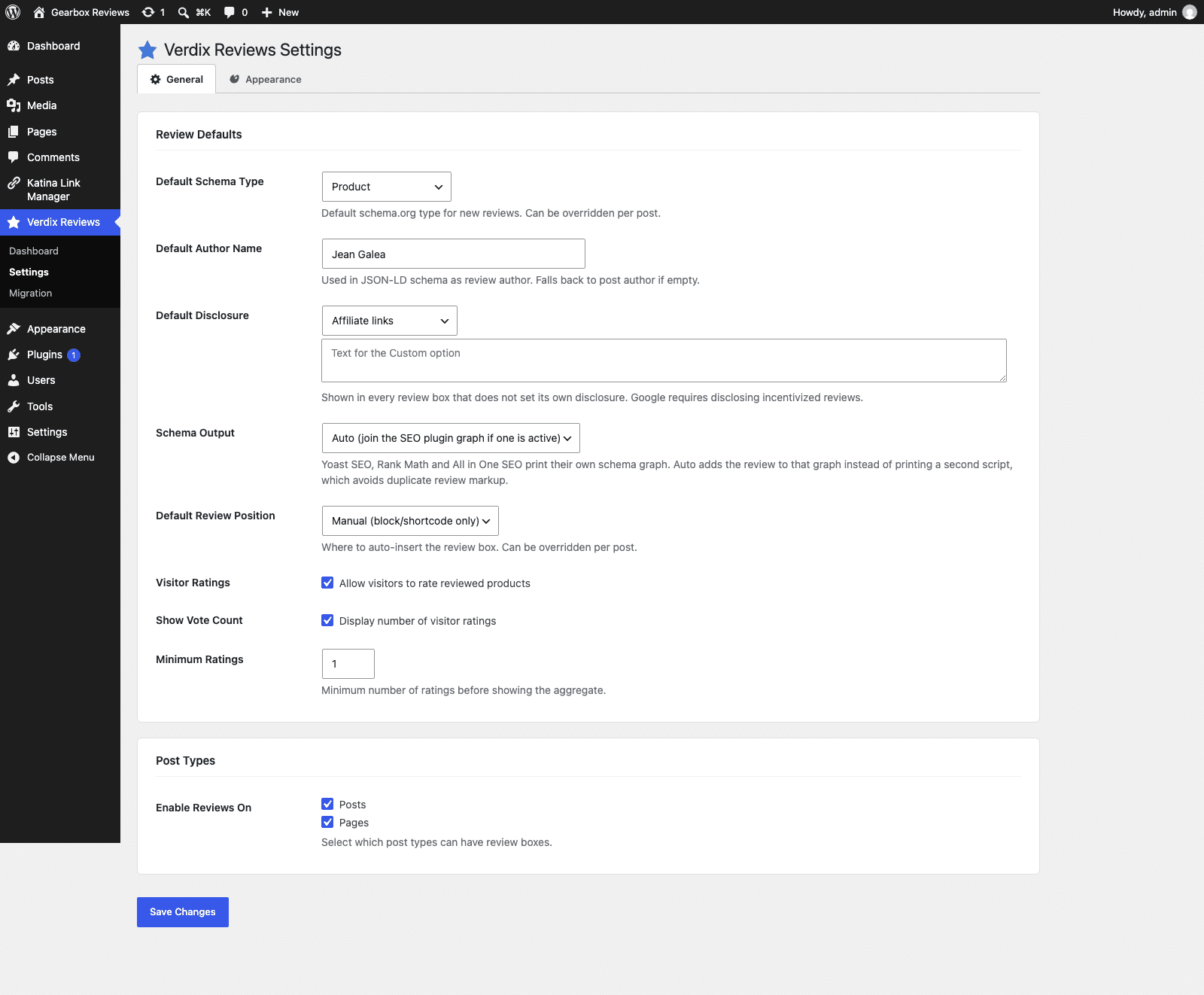
Go to Verdix Reviews > Settings. The General tab has these fields:
- Default Schema Type: the schema.org type for new reviews. You can override it per post.
- Default Author Name: the review author in the schema. It falls back to the post author, then the site name.
- Default Disclosure: the disclosure shown in every review box that doesn’t set its own, plus a text box for the Custom option.
- Schema Output: Auto, Standalone script tag, Integrate with the SEO plugin graph or Off.
- Default Review Position: Manual (block/shortcode only), After content, Before content, or Before and after content. A post can override it in the Position panel.
- Enable Reviews On: the post types that get the Rating column in the posts list.
The Appearance tab has Review Box Style, Star / Accent Color, Background Color and Border Color, with a live Preview underneath. The colors are applied as CSS custom properties on the box, so you can override them from your theme’s CSS.
The Verdix Reviews > Dashboard screen lists your reviewed posts with their rating, schema type and status. Posts lists also get a sortable Rating column.
Read the schema check panel
The Schema check panel in the block sidebar checks the saved version of the post against Google’s review snippet requirements. It runs after you save, and the Run check button runs it again. The classic meta box shows the same results in its Schema check section. Each item is an error, a warning or an info note, with errors listed first.
Errors are things that stop Google showing stars:
- No rating set. Verdix prints no schema until the rating is above zero.
- The type is Thing or Creative Work. Google doesn’t support review snippets for them, so pick a more specific type such as Product, Book or Movie.
- The reviewed item has no name, or the review has no author name (or one of 100 characters or more). Set an item name, a Default Author Name or an Author Name Override.
- Required type fields are missing: an image for Recipes, a provider for Courses, a start date and location for Events, an address for Local Businesses and Restaurants.
Warnings are worth fixing: the Local Business, Restaurant and Organization types only get stars when the reviews are about other businesses, software apps need a price (use 0 for free apps), a Book needs an author, a Movie needs a featured image, and a Recipe should list its ingredients. A warning also appears when WP Review, WP Review Pro, Taqyeem, Ultimate Blocks, Site Reviews or Rank Math (with a rich snippet type set on the post) may print their own review schema, because two review nodes on one page can confuse Google. Turn the other plugin’s review markup off.
Info notes are suggestions: no price or no featured image on a Product, the post isn’t published yet so Google can’t test it, or an SEO plugin is active and you should confirm in the Rich Results Test that it isn’t printing a second Product or Review node. Once the post is published, a link opens it in Google’s Rich Results Test.
Add offers and buy buttons
Open the Offers panel in the block sidebar (or the Offers row in the classic meta box) and click + Add offer. Each offer has a Merchant, Price, Currency, Button Text and URL, and prints as its own row with a button. The button text defaults to “Check price”. Offers with a price are output in the schema as an Offer, or as an AggregateOffer when there are several.
With no offers, the box uses the price and the CTA Button fields instead. The CTA button only appears when both its text and URL are filled in.
Use Katina links for affiliate buttons
If Katina Link Manager is active, each offer gets a Katina link picker. Choose a link and the button points to your cloaked link instead of the URL field. Katina buttons always get rel="sponsored nofollow noopener noreferrer". Other offers get the same rel when the disclosure is Affiliate links or Sponsored, and nofollow noopener noreferrer otherwise.
Add a disclosure and a last tested date
Open the Disclosure and testing panel. Disclosure offers No disclosure, Affiliate links, Free product received, Sponsored and Custom text. Each preset adds a standard sentence under the box, and Custom text lets you write your own. Leave a post on “Use global default” to inherit the Default Disclosure from Settings. Google’s 24 July 2026 guideline on incentivized reviews calls for a disclosure.
Last tested is a date. It shows in the box as “Last tested: date” and goes into the schema as the review’s dateModified. Update it each time you re-test the product.

Choose how schema works with your SEO plugin
Under Schema Output you have four modes:
- Auto (join the SEO plugin graph if one is active): the default. With Yoast SEO, Rank Math (rich snippet module on) or All in One SEO, the review joins that plugin’s schema graph. Without one, Verdix prints its own script tag.
- Standalone script tag: Verdix always prints its own JSON-LD in the page head.
- Integrate with the SEO plugin graph: the same as Auto.
- Off: Verdix prints no schema.
When Verdix joins a graph, it attaches the review to an existing node of the same type if there is one (a WooCommerce or Rank Math Product, for example), reuses a matching author node, and skips itself if the graph already holds a Review.
Import reviews from other plugins
Go to Verdix Reviews > Migration. Verdix scans the site and lists each source as Data detected or Nothing to migrate: WP Review Pro, Ultimate Blocks (Review block), Rank Math (review snippet) and, with Pro, WP Product Review. For a source with data you can click Migrate on a single post or Migrate All. Posts that already have Verdix data show as Already migrated.

Percentage and points ratings convert to the 0-5 star scale. For Ultimate Blocks and Rank Math there’s an option to replace the old block or shortcode in the post content with the Verdix one. There’s also a checkbox to stop the old plugin printing its review schema on posts that have Verdix data, so a page never carries two sets of markup.
Add rating types and box styles (Pro)
Pro adds two rating types next to Star (0-5): Percentage (0-100%) and Points (0-10). Pick one in the Rating Type panel. The schema always normalizes to a 0-5 ratingValue.
Pro also adds four box styles to the Default one: Card, Hero, Split and Minimal. Set a site-wide default under Verdix Reviews > Settings > Appearance > Review Box Style, or pick one per post in the Style panel. These four load fonts from Google Fonts.
Rate several criteria (Pro)
Open the Multi-Criteria panel in the Review Box block’s sidebar, or the Multi-Criteria section of the classic meta box, and turn on Enable multi-criteria ratings. Add each criterion with + Add Criterion, give it a label such as Features or Value for Money and a score from 0 to 5. The criteria print in the box header. With multi-criteria on, the overall rating is the average of the criteria. Migrating from WP Product Review fills the criteria and the average for you.
Collect visitor ratings (Pro)
Go to Verdix Reviews > Settings > General and tick Allow visitors to rate reviewed products under Visitor Ratings. Two more fields appear: Show Vote Count (display the number of visitor ratings) and Minimum Ratings (how many ratings must exist before the aggregate shows).
The rating form sits in your comment form under Your Rating, with one extra row per criterion when the review uses criteria. A visitor leaves a rating by posting a comment, and the rating counts once the comment is approved. Each visitor can rate a post once, matched by user ID when logged in and by email otherwise. The box then shows Reader Rating with the average and the vote count.
Once the minimum is reached, Verdix adds an aggregateRating to the schema built from those visitor ratings. It never builds one from your own score. To turn visitor ratings off for a single post, tick Disable visitor ratings for this post in the classic meta box.
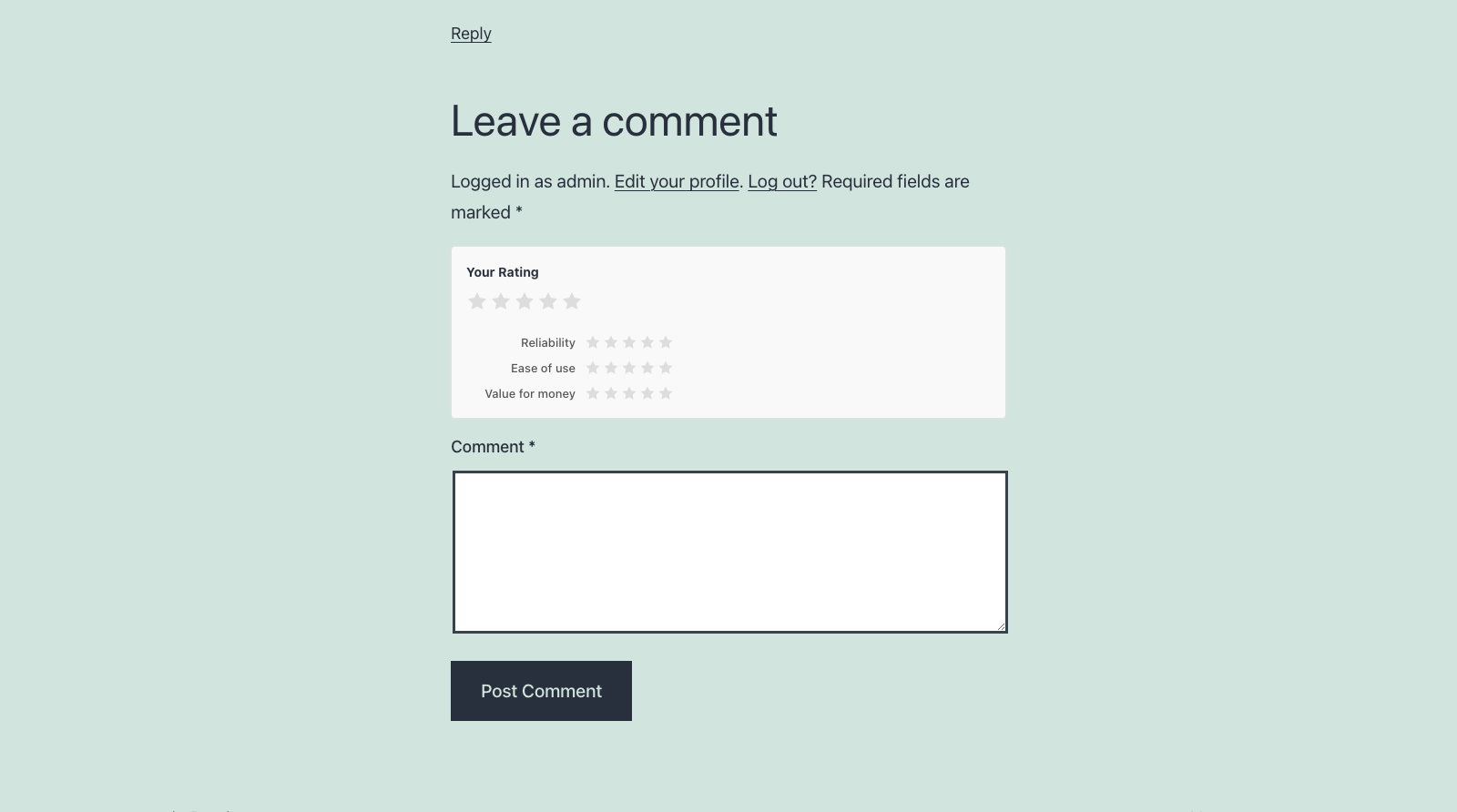
Visitor ratings use the comment form, so your theme has to print a standard comment form on the post.
Build a comparison table (Pro)
The comparison table pulls from reviews you’ve already written. Add the Verdix Compare block, then in the Comparison Settings panel set Post IDs (comma-separated, at least two), Fields and Highlight Best Pick. Or use the shortcode:
ids: comma-separated post IDs. You need at least two published posts that have a rating, and password-protected posts are skipped.fields: which rows to show, in order. The options are rating, summary, pros, cons, cta and price. The default israting,summary,pros,cons,cta.highlight:true(the default) marks the highest-rated item with a Best Pick badge. Usefalseto turn it off.
The Price and Link rows use each review’s first offer. Summaries are cut at 150 characters.

Draft pros and cons with AI (Pro)
Draft with AI writes a first-draft summary, pros and cons from the post’s text. It’s a panel with a button in the block sidebar, and a row in the classic meta box. It needs WordPress 7.0 or later and an AI provider connected under Settings > Connectors. Without a provider, the button tells you so and links to Connectors.
Write at least a couple of paragraphs first, because the draft only uses what’s in the post, and it refuses when there are fewer than 100 characters of text. If the review already has a summary, pros or cons, Verdix asks before replacing them. It returns up to five pros and five cons and returns no cons if the post doesn’t mention any. The draft goes into the fields. Nothing is published until you update the post, so edit it first.
For developers
Verdix registers four abilities in the Abilities API under a Verdix Reviews category: verdix/get-review, verdix/list-reviews (filter by minimum rating on the 0-5 scale, by schema type, with paging), verdix/update-review and verdix/delete-review. Updates merge into the saved review, so omitted fields keep their values.
The REST API has these routes:
GET /wp-json/verdix/v1/review/{id}: the review, its generated schema, its offers and the disclosure text. Published posts are public.POST /wp-json/verdix/v1/review/{id}(also PUT and PATCH): merges the JSON body into the review. It needs permission to edit the post.GET /wp-json/verdix/v1/review/{id}/check: the schema check issues, whether the post is published, and the Rich Results Test URL.
The main hooks:
verdix_post_types: the post types that get the meta box, the REST meta and the ability queries. It defaults to posts and pages, so add a custom post type here.verdix_schema: the final schema array, with the post ID and review data.verdix_schema_aggregate_rating: return a schema.org AggregateRating array to add one. It has to come from visitor ratings, not the author’s own score. Pro uses it.verdix_schema_integration: the resolved output mode (standalone, integrate or off), with the saved setting and the detected SEO plugin.verdix_schema_eligibility: change what the schema check says about a type.verdix_schema_typesandverdix_type_fields: add schema types or per-type fields.verdix_rating_typesandverdix_styles: register rating types and box styles. Pro does this.verdix_disclosure_presets: change the preset disclosure sentences.verdix_sanitize_review_data: extend what’s saved with a review.verdix_migration_sources: register another migration source.verdix_render_after_headingandverdix_render_after_rating: actions that print inside the box.verdix_compare_fields(Pro): add rows to the comparison table.
FAQ
Why doesn’t my review schema include an aggregateRating?
An aggregate rating has to come from your visitors, and Google treats one built from the author’s own score as invalid. Verdix marks your score up as a Review. It only adds an aggregateRating when Pro’s visitor ratings exist and the Minimum Ratings number is met.
Does Verdix work with Yoast SEO, Rank Math and All in One SEO?
Yes. In the default Auto mode, the review joins that plugin’s schema graph instead of printing a second script. You can change this under Verdix Reviews > Settings > Schema Output.
Can I use Pro without the free plugin?
No. Pro extends the free plugin and shows an admin notice until Verdix Reviews is installed and active.
Which post types can have a review box?
Posts and pages by default. To add a custom post type, use the verdix_post_types filter. Enable Reviews On controls the Rating column and the dashboard list.
Can a visitor rate the same product more than once?
No. Pro keeps one rating per visitor and post, matched on user ID for logged-in visitors and on email otherwise.
Does Draft with AI publish anything?
No. It fills in the summary, pros and cons in the editor for you to edit, and it asks before replacing text that’s already there. The post only changes when you update it.
Verdix is one of the WordPress plugins I build. For the companies and projects behind them, see my projects page.