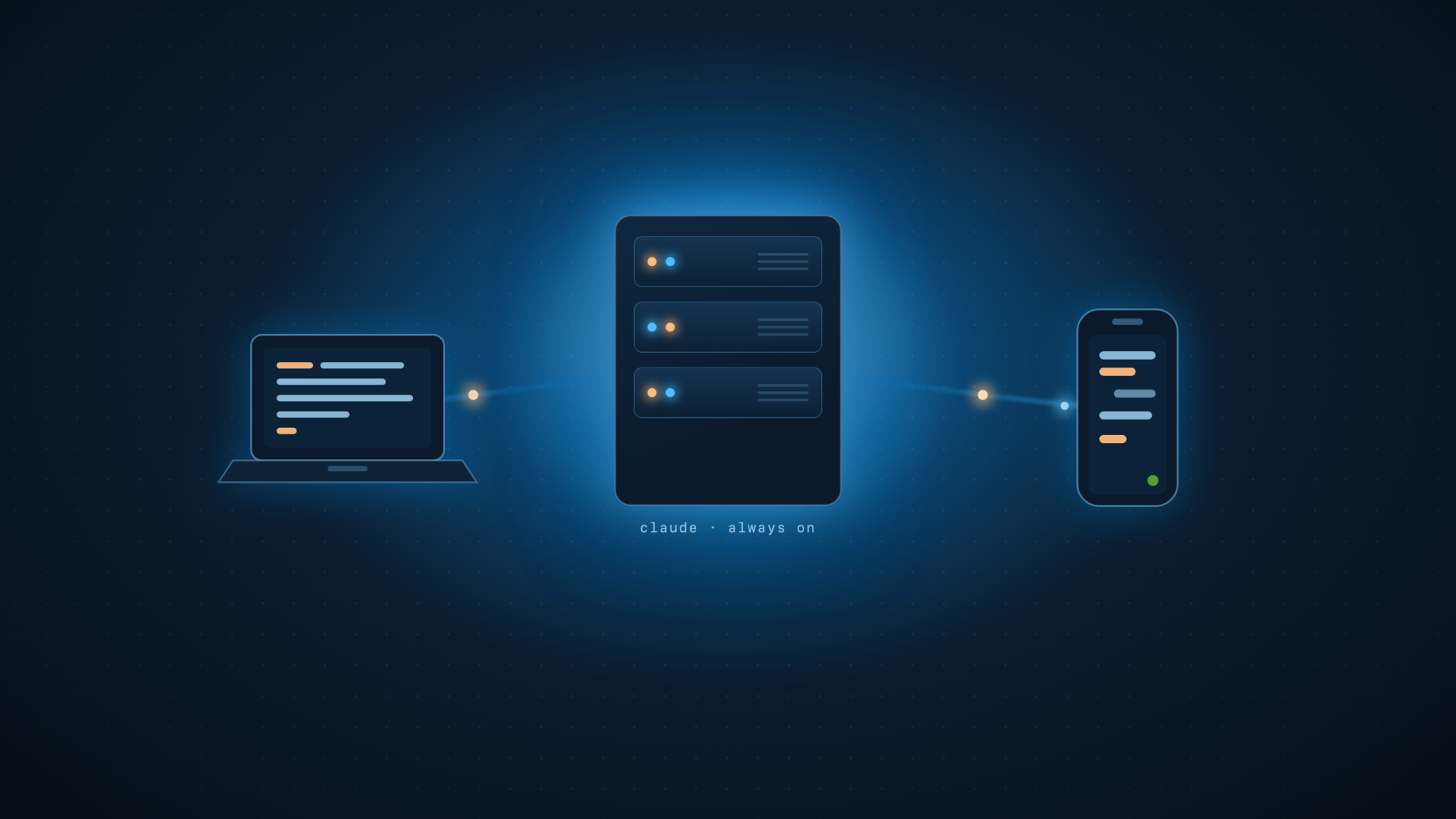
A friend showed me his Claude Code setup and it was the cleanest version of an idea I’d been circling for a while. Claude Code runs on a cheap server he rents from Hetzner. His laptop and his phone are just windows into it. He starts a task at his desk, walks away, and finishes steering it from his phone on the couch, while the actual work keeps running on the box the whole time.
The laptop’s specs stop mattering, because nothing heavy runs on the laptop. An old machine or a budget one works fine, because all it does is show you a session that lives somewhere else.
If you already own a machine that stays on, a desktop or a spare Mac, the only question is how to reach it, and I wrote separately about reaching a machine you own from anywhere. This is the other case: you don’t have a spare always-on computer, so you rent one. A few euros a month buys a box that outmuscles most laptops and never sleeps.
This guide walks through building that setup yourself: a locked-down Hetzner box running Claude Code, reachable from every device, with secrets handled so you’re not pasting API keys into plaintext files on a public server. At the end I compare it with the other obvious approach, running Claude Code locally on your own Mac, so you can decide which fits you.
How the setup actually works
There are three pieces, and it helps to be clear about what each one does.
The Hetzner box is where Claude Code runs and where your code lives. It does all the work: builds, agent runs, git operations, everything. It’s always on.
Remote Control is the feature that connects your phone or browser to the session running on that box. This is Anthropic’s own feature, not a hack. The session keeps running on the box, and your devices are a live view into it. Messages, tool results, and approvals flow through an encrypted bridge over the Anthropic API. The files never leave the box.
Your devices are thin clients. The laptop drives the box over the terminal or the Claude Code desktop app. The phone connects through the Claude mobile app. Neither one needs any horsepower.
One detail worth internalizing early: with Remote Control, the box only ever makes outbound HTTPS requests to Anthropic. It never opens an inbound port for the phone to connect to. The phone reaches your session through Anthropic’s relay, not by dialing into your server. That means you can firewall the box completely shut and the phone workflow still works. It changes how you secure the thing.
What you need first
A Hetzner account. Their Cloud product is the easy path: a capable shared-vCPU instance runs a few euros a month, and you can resize it later.
A Claude Pro or Max subscription. Remote Control works on Pro, Max, Team, and Enterprise. It does not work with an API key, and this matters more than it sounds, which I’ll come back to.
Basic comfort with a Linux terminal and SSH. You’re running a server now. Nothing exotic, but you should be able to follow commands and not panic at a shell prompt.
The Claude mobile app, for the phone half of the setup. iOS or Android.
Step 1: Provision the box
In the Hetzner Cloud console, create a new server. Pick Ubuntu 24.04 as the image. For Claude Code itself a small shared-vCPU instance with 4 GB of RAM is enough to start; size up if you’ll run heavy builds. Add your SSH public key during creation so you can log in without a password from the first second.
Once it boots, SSH in as root using the IP Hetzner gives you:
ssh root@YOUR_SERVER_IPUpdate the system before anything else:
apt update && apt upgrade -yStep 2: Lock it down before you put anything on it
This is the step people skip, and it’s the one that bites them. You’re about to put your code and an autonomous agent on an internet-facing machine. Harden it first.
Create a normal user so you’re not living as root:
adduser claude
usermod -aG sudo claude
Copy your SSH key over to the new user so you can log in as them, then test that you can SSH in as claude in a separate terminal before you go further.
This next move is what makes the setup genuinely safe. Because Remote Control needs no inbound ports, you can take SSH off the public internet entirely and reach the box over a private network instead. Install Tailscale, which builds an encrypted private mesh between your own devices:
curl -fsSL https://tailscale.com/install.sh | sh
tailscale up
Follow the login link, and the box joins your Tailscale network. Install Tailscale on your Mac too. Now your laptop and the box can talk to each other over a private address that nothing else on the internet can see.
With that in place, close public SSH. Configure the firewall to allow SSH only over the Tailscale interface and deny it from the public internet. Hetzner also gives you a cloud firewall in their console, which you can set to block inbound port 22 from everywhere. Outbound HTTPS stays open, which is all Claude Code and Remote Control need.
The result: the box answers to nobody on the open internet, you reach it for admin over Tailscale, and the phone still works because Remote Control goes out through Anthropic, not in through your firewall.
Step 3: Install Claude Code
As your claude user, run the official installer:
curl -fsSL https://claude.ai/install.sh | bashConfirm it landed and is recent enough for Remote Control, which needs v2.1.51 or later:
claude --versionStep 4: Sign in with your subscription, not an API key
Run Claude Code:
claudeInside the session, sign in:
/loginOn a server with no browser, the flow gives you a URL. Copy it, open it in the browser on your laptop, approve the login, and paste the code back into the terminal. You’re now authenticated with your claude.ai subscription.
Do not set ANTHROPIC_API_KEY on this box. Remote Control requires a full-scope subscription login and refuses to run with an API key or an inference-only token. If that variable is set in your shell profile, Remote Control will fail with a policy error. Subscription OAuth login is both what you want and what the feature demands.
While you’re here, run claude once in your project directory to accept the workspace trust prompt, so it doesn’t interrupt you later.
Step 5: Keep sessions alive with tmux
Remote Control runs as a local process on the box. If that process stops, the session ends. Over SSH, closing your terminal would normally kill it. The fix is tmux, which keeps a session running on the box after you disconnect.
sudo apt install tmux -y
tmux new -s claude
Inside tmux you can start Claude Code, detach with Ctrl-b then d, close your laptop, and the session keeps running. Reattach any time with:
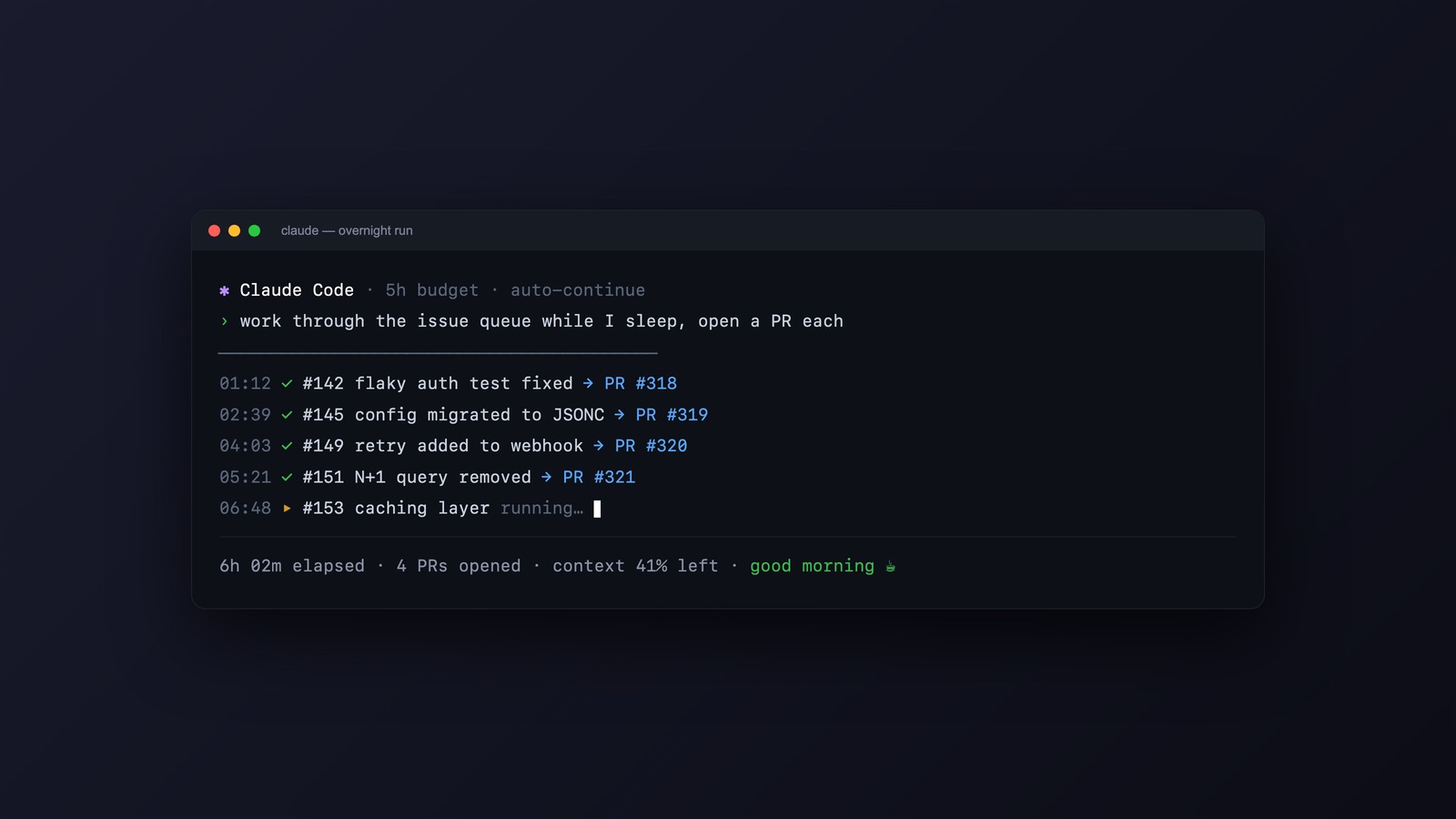
tmux attach -t claudeThis is what lets a long agent run survive your laptop going to sleep.
Step 6: Turn on Remote Control and pair your phone
Inside your tmux session, start Claude Code with Remote Control. The simplest mode for one project:
claude --remote-control "My Project"It prints a session URL and a QR code. Install the Claude app on your phone, sign in with the same account, open the Code tab, and your session shows up with a green dot. Tap in and you’re driving the box from your pocket: send instructions, approve permission prompts, watch tool output. Run /config to enable push notifications and to turn Remote Control on by default, so every session registers itself.
Remote Control is one way in, and it only drives Claude Code. For the rest of the toolkit, a real terminal over Tailscale, a full desktop when you want one, and the iPad rig that ties them together, I wrote a separate guide on reaching your server from anywhere.
Step 7: Handle secrets without dumping them on the box
This is the real cost of moving off your Mac, and it deserves care. On a Mac, your secrets sit in Keychain and 1Password, encrypted at rest and released only when you authenticate with Touch ID. A headless server has none of that. The lazy version of this setup ends with API keys in plaintext .env files and a private SSH key sitting on disk, on a public box, where one break-in hands over everything at once. That’s a worse security posture than the laptop you started with.
The fix: keep secrets on your Mac, and let the box borrow them only when it needs them.
For git and SSH, don’t copy your private key to the box. Use SSH agent forwarding, or better, the 1Password SSH agent, so the key stays on your Mac behind Touch ID and the box uses it per-operation while you’re connected. The key never lands on the server.
For application secrets and API keys, skip plaintext .env files. Use the 1Password CLI to pull secrets at runtime, authenticated by a Service Account token scoped to a single vault. Instead of storing twenty secrets, you store one revocable, narrowly-scoped token, and 1Password injects the rest only when a command runs.
The honest residual: a fully autonomous box, one running a git push while your Mac is asleep, can’t borrow a forwarded key, because there’s no active connection from your Mac to forward it. For that you need some credential to live on the box: a deploy key scoped to one repo, or that single Service Account token. You’ve collapsed the exposure from “all my secrets in plaintext” down to “one tightly-scoped credential,” which is a large improvement, but it isn’t zero. And you give up the physical-presence gate, because there’s no Touch ID on a server that runs without you. That tradeoff is the whole point of the setup and also its sharpest edge.
Step 8: Back up the box
Everything now lives in one place: your config, your project repos, and your session history all sit on the box. That’s convenient and it’s a single point of failure. If the server dies and you have no backup, the lot goes with it.
Turn on Hetzner’s automated snapshots in the console for a cheap baseline. For anything you’d hate to lose, push your repos to a remote like GitHub as you normally would, and schedule a backup of your home directory to object storage. The same approach I use for backing up a Claude Code setup to the cloud works here, just pointed at a server instead of a laptop. The goal is simple: losing the box should cost you an afternoon of rebuilding, not your work.
Your daily workflow once it’s running
At your desk, you SSH into the box over Tailscale, attach to tmux, and work in the terminal or the Claude Code desktop app pointed at the box. Away from your desk, you open the Claude app, tap into the running session, and keep going. The box does the work the entire time. Your laptop can sleep and your phone can lock without stopping anything.
Running it as a team box
The same box works for a whole team, with one rule and one risk.
The rule: don’t share a single Claude login. A Pro or Max subscription is per person, holds one Remote Control session per process, and will hit rate limits fast with several people on it. Give each person their own Unix user on the box and their own claude auth login, ideally on a Claude Team or Enterprise plan so seats and admin controls are handled properly. Server mode supports up to 32 concurrent sessions, so the concurrency is there.
What a team gets out of it: one identical environment for everyone, no “works on my machine,” fast onboarding, and central control, since offboarding is “remove the user” rather than chasing laptops. One strong box is often cheaper than equipping everyone, and it stays on around the clock.
The risk to take seriously is blast radius. Everyone’s code and credentials now sit on one machine. Unix users separate people, but a shared box raises the stakes of a single compromise, so keep each person’s secrets isolated rather than pooled, and lean harder on the Tailscale-only, no-public-SSH posture from Step 2. If two people share a working directory their edits collide, so give each session its own git worktree, which Remote Control’s server mode can spawn automatically. Several heavy agent runs also compete for CPU and memory, so size the box up or run one per few developers.
At that point you’ve built a do-it-yourself cloud development environment, the same niche as Coder, Codespaces, or Gitpod, just cheaper and fully yours.
How this compares to running Claude Code locally on your Mac
The alternative is the straightforward one: install Claude Code on your Mac and run it there, where your code, config, and session history all sit on your own hardware. Both setups are coherent. They make different tradeoffs.
Where the Hetzner box wins:
Your laptop and phone specs stop mattering. The box carries the load, so a weak or aging device is a fine client.
Sessions persist and travel. A long run keeps going while you’re away, even when you close the lid or lose signal, and the same session is reachable from every device with no syncing, because there’s only one copy.
The network is better. Dependency installs, clones, and pushes run from a datacenter rather than home wifi, and the box can stay on around the clock for scheduled or long-running work.
It’s cheap for the capability. A few euros a month buys more cores and memory than a budget laptop has.
Where the local Mac wins:
Your code and config stay on your own hardware, encrypted at rest, never sitting on a machine someone else operates. For sensitive work that’s the cleaner answer by default.
Secrets stay in their proper home. Keychain and 1Password, gated by Touch ID, keep working exactly as they’re meant to, with no token left on a server and no physical-presence gate to give up.
There’s nothing to secure or maintain. No server to patch, no firewall to get right, no attack surface exposed to the internet. The machine in front of you is the whole system.
It works offline. On a plane or with bad wifi, a local setup keeps going, while the box needs a connection to reach at all.
The honest summary: the box buys you one always-on environment you can reach from anything, at the cost of running a server and accepting that your code lives on rented hardware. The local Mac keeps everything on your own machine with nothing to administer, at the cost of being tied to that machine and solving remote access and persistence yourself. If you work across devices all day and like owning your environment, the box is worth the upkeep. If your work is sensitive or you’d rather not run a server, staying local is the saner default.
There’s also a middle path worth knowing about. Claude Code on the web runs sessions on Anthropic’s own cloud infrastructure, no server of your own to rent or secure. You get the same cross-device continuity with zero maintenance, in exchange for less control and your code running in Anthropic’s sandbox rather than on a box you own. It’s the no-ops version of the same idea.
Pick the one whose costs you’d rather pay. They’re all the same bet from different angles: put Claude Code somewhere it can run without you sitting in front of it, and reach it from wherever you happen to be.
Related






Leave a Reply