
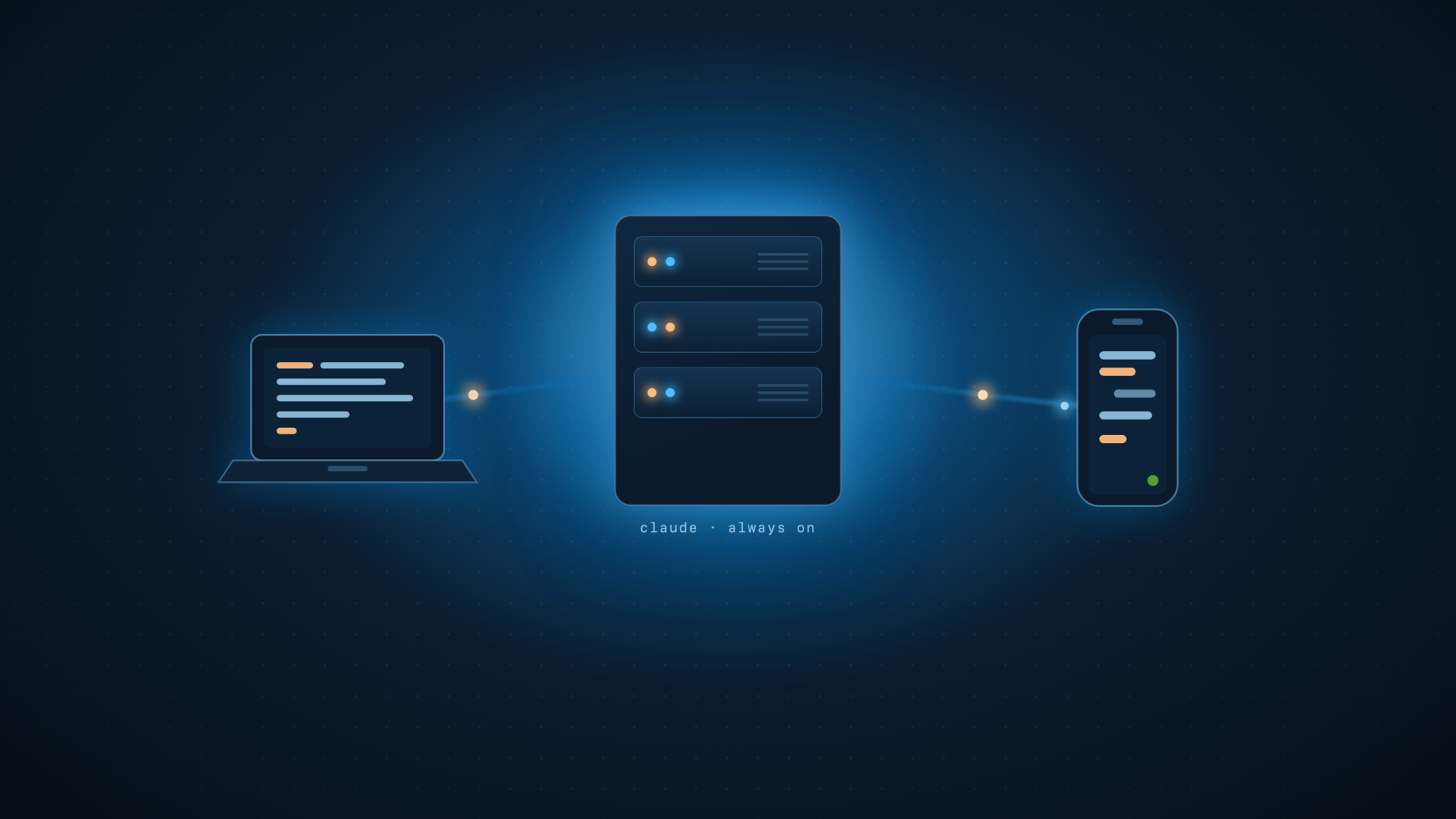
I keep my real work on one machine: a server that runs my whole AI setup. It holds everything: the projects, the keys, the local agents, the horsepower. I do not work on it directly. I log into it remotely from whatever light device I have with me, the kind that stores almost nothing of its own. If you don’t already have a machine like this, here’s how to build one on a cheap Hetzner box.
Setting up Claude Code’s Remote Control feature is what pushed me to map this out properly. I ended up with three tools, each doing a different job. They overlap just enough to be confusing, so here is how I split them.
Remote Control: Nudge an Agent From Your Phone
Remote Control is built into Claude Code. It lets you drive a session that is already running on your machine from claude.ai in a browser or the Claude mobile app. The session keeps running on the server the whole time. Your phone is just a window and a set of buttons: approve a permission prompt, send a follow-up instruction, stop a run.
To use it you need a full-scope login, which you get by running claude auth login (the long-lived tokens used for scripts and cron are inference-only and cannot open the control channel, by design). After that you either type /remote-control in a session to expose it, or set enableRemoteControlByDefault to true so every session registers itself. Boris Cherny, who leads Claude Code, runs it default-on, and so do I now.
The boundary matters: Remote Control only drives Claude Code. It gives you no desktop, no shell for other tools, nothing beyond the agent. It is the right call when you are out with only a phone and you just want to keep an agent moving. It is useless as a workstation.
Jump Desktop: The Server’s Full Desktop on a Travel Laptop
My server is a desktop-class machine that I keep running all the time, so it has a real graphical desktop when I want one. Jump Desktop is the remote desktop app that gives me that. You see the machine’s screen and drive it as if you were sitting in front of it. Its own connection service handles the hard networking part, reaching the machine across the internet with no port forwarding and no VPN to configure. Install it on both ends, sign in, and you are looking at the server’s desktop.
This is the tool for the scenario I care about most: a cheap, near-empty laptop I carry around, with the real machine doing the work back on the server. When I want the full desktop and every app on it, Jump gives me that with the least fuss.
Its limit is the flip side of its strength. Jump does one thing, a graphical desktop, and it does it through its own relay. You get pixels of the machine’s screen, not a real terminal and not access to individual services.
Tailscale: The Private Network Underneath Everything
Tailscale is a different layer entirely. It is a private network, built on WireGuard, that makes your server reachable from any device you add to it, by name, wherever you are. It does not care what app you run on top. Once the server is on the network, every service and port becomes reachable:
- SSH and a real terminal, which Jump cannot give you
- A local web app or dev server running on a port
- File transfer, a database, a media server, anything listening
- Other machines too, not just the one server
It also does not lean on any single vendor’s relay staying up. It is your own network, under your control.
You can even combine the two: run Jump Desktop in its direct mode over the Tailscale link, so the screen-sharing traffic rides your own private tunnel with no third party in the path. Tailscale is the road. Jump is the car.
Watching a Live Preview Without Mirroring a Screen
This scenario made the split obvious to me. Say I am building something with Claude Code in a terminal on the server, and a dev server starts on localhost:3000. I want to watch the live preview on my travel laptop. Which tool carries that?
Tailscale, and it is the better experience by a distance. Because the laptop has a network path to the server, you open http://your-server-name:3000 in the laptop’s own browser. The page renders natively, on your device, with working dev tools. It is a real local tab, not a video of someone else’s screen. The terminal half rides the same tunnel over SSH.
Jump would also get you there, but only by mirroring the whole desktop so you watch its browser remotely. That works, and it lags, and you are driving the server’s browser instead of your own. For a single web preview, Tailscale is the clean answer.
iOS Apps and the Simulator
There is one job where the browser trick breaks down, and I hit it often because I build iOS apps. An iOS simulator is not a web server on a port. It is a native Mac app that draws a fake iPhone on the server’s screen, and Xcode and the Simulator only run on macOS, so the iPad cannot load it in Safari or run it itself. There is no URL to open and no remote-simulator app for iPadOS.
So this one goes back to Jump Desktop. You mirror the server’s desktop, and the simulator is just a window on it. You build in Xcode over the same session, hit run, and watch the simulated iPhone in the mirrored screen. SwiftUI previews and the Xcode canvas work the same way, since they are GUI surfaces inside Xcode, not web ports.
It is good enough for most of the work: layout, navigation, checking flows. It is weakest where iOS work is most demanding. A screen-mirror lags, and Jump turns my iPad touches into pointer events, so a single tap is fine but pinch, rotate, and multi-finger gestures are clunky. For animation feel and real gesture testing I still want to be at the machine or on a physical device. The upside is that the build and the simulator run on the server’s hardware, so only pixels travel and a light iPad keeps up with a heavy Xcode build.
The pattern holds: a web preview rides Tailscale into your own browser, and a native screen like a simulator rides Jump Desktop. Pick the tool by what you are looking at.
Working From Just an iPad
The iPad is the device that makes this whole setup click, because all three tools have good iPad apps. Tailscale plus an SSH client like Blink gives me a terminal on the server, with Claude Code running in it exactly as it does at my desk, and the live preview opens in Safari at the server’s :3000 over the same tunnel. Jump Desktop’s iPad app hands me the full desktop when I want it. The Claude app covers Remote Control. One slim device, all three jobs, and the laptop stays home.
Two things turn it from possible into pleasant.
Bring a hardware keyboard, a Magic Keyboard or any Bluetooth one. Real terminal work on the glass keyboard is miserable. With a physical keyboard it is close to a laptop.
Run tmux on the server and use a client that speaks mosh, like Blink. iPadOS suspends apps in the background, and a cellular connection drops as you move around. Plain SSH loses the session when that happens. With mosh and tmux, the connection re-heals and Claude Code is exactly where you left it. I can start something, drop the iPad in my bag, pull it out twenty minutes later, and pick up mid-task.
The honest limit is that it is still a remote session, not local work. Anything that wants local files or desktop-class windows is smoother over Jump Desktop than through a terminal. But for Claude Code in a terminal with a live preview alongside, an iPad with Blink and Tailscale is a real carry-anywhere setup.
How I Choose
- Phone only, just keeping an agent moving: Remote Control.
- I want the entire desktop on a travel laptop, easy: Jump Desktop.
- I want a terminal, a specific service, a live preview, or the whole fleet: Tailscale.
- Maximum privacy with a full desktop: Jump running over Tailscale.
Two Things That Bite You
First, the light device always needs a client. Tailscale gives you the network, but you still open an SSH app or a remote-desktop app to do anything. Remote Control is the exception: on a phone it is just the Claude app, nothing else to install.
Second, the server has to stay online and reachable. A machine that has dropped off the network or gone to sleep is a machine you cannot reach. Keep it awake, or set up wake-on-LAN, so it is there when you reach for it.
None of these replace the others. Remote Control keeps an agent moving from my pocket. Jump hands me the whole machine when I want it. Tailscale is the quiet backbone that makes the real work, the terminal and the live preview, feel local from anywhere.
Related





Leave a Reply