I wrote the first version of this post in 2018. It covered Google Authenticator, Authy and 1Password, and it called SMS the least secure option. I’ve run WordPress sites for well over a decade, and a few things have changed for site owners since then.
Passkeys can now replace the WordPress password entirely. Authy’s desktop apps reached end of life on March 19, 2024, so Authy is mobile-only. NIST SP 800-63B-4, final since July 2025, classifies SMS and phone authentication as “restricted”, and it isn’t phishing-resistant.
I built Sigil, a free WordPress plugin for passkeys and two-factor authentication, and it’s what I use on jeangalea.com. The concrete examples below come from it, though the advice holds for whichever plugin you choose. It sits alongside my other WordPress plugins.
Where to Turn It On
Every administrator account comes first. An admin can install plugins, so whoever steals an admin login controls the site.
Editors, shop managers and anyone else who can publish or install belong on the list next. If a role can change what visitors see or what a store charges, give it a second factor.
Then look past WordPress itself. If an attacker gets into the inbox behind an admin user, they can reset the WordPress password from the login screen, so the email accounts behind those users need 2FA too. Your hosting control panel and your domain registrar need it for the same reason, since either one gives an attacker a way to the site that skips the WordPress login.
Your password manager goes on the list as well, because it holds the credentials for everything above. I use 1Password, and I’ve written about why it’s my favorite.
WooCommerce customers are a different case. I’d offer 2FA to them and leave it optional, since forcing it on shoppers adds friction for people who only want to buy something.
Which Method to Pick
For a WordPress login, I’d rank passkeys first, then authenticator apps, then email codes. SMS doesn’t make the list, and backup codes go with whichever method you choose.
Passkeys
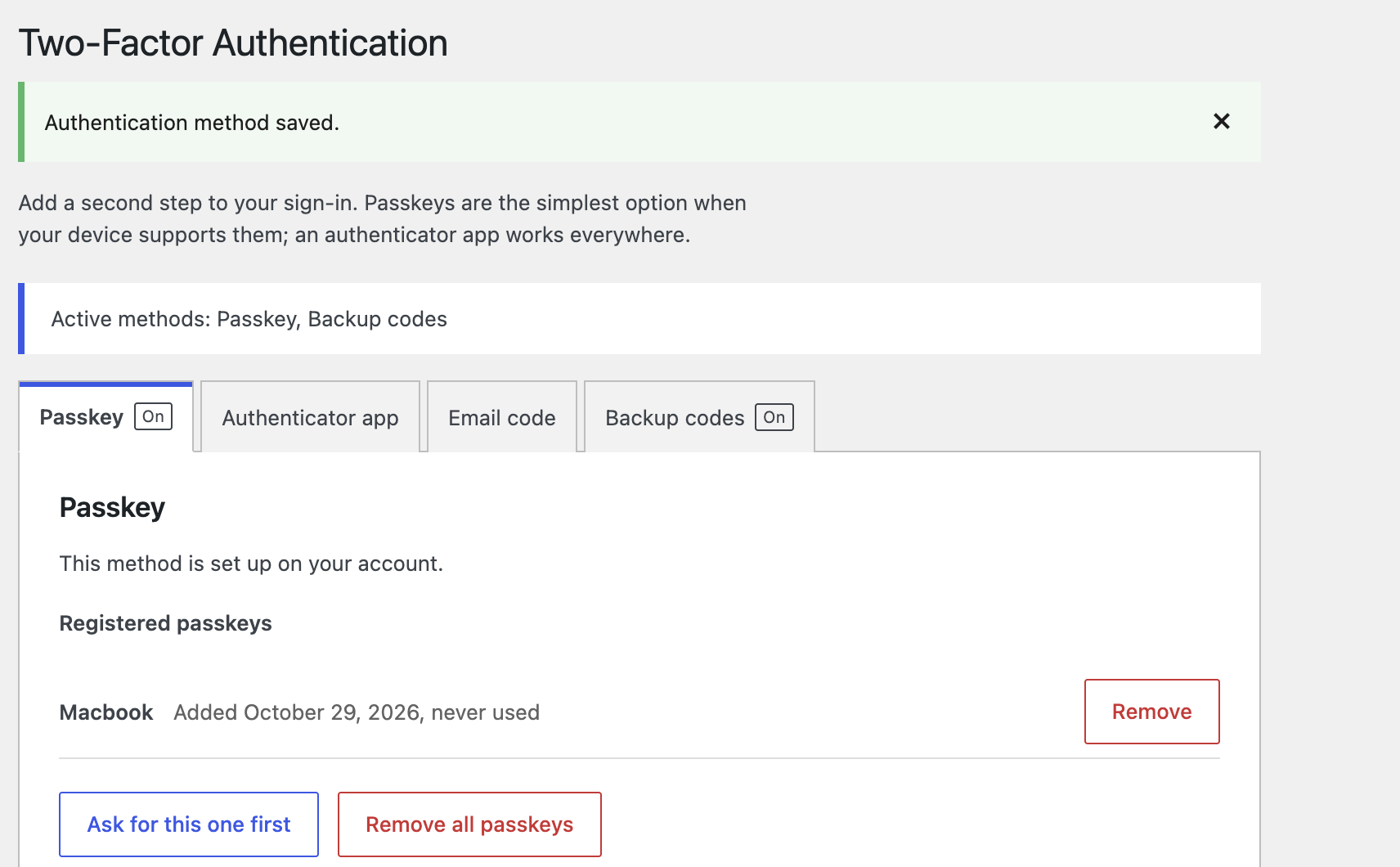
This is the method that can retire your password. On a Sigil site the login screen shows a “Sign in with a passkey” button, and you approve with Face ID, Touch ID, Windows Hello or a security key.
Each passkey is bound to your site’s domain, so a lookalike login page on another domain can’t use it. That’s what makes it resistant to phishing. You keep passkeys in a password manager (Apple Passwords/iCloud Keychain, Google Password Manager, 1Password or Bitwarden) or on a hardware key.
For hardware, YubiKey, Google Titan and Nitrokey all work. Buy two, so losing one doesn’t lock you out. Passkeys in Sigil run on PHP 8.0 or newer.
Authenticator apps
Time-based codes from an app are the next best option, and the one to use wherever a passkey isn’t available. Sigil accepts any app that follows RFC 6238, and password managers that store one-time codes can fill the code in for you. Authy still works on a phone, but its desktop apps are gone.
Apple’s Passwords app on iOS 18 and macOS Sequoia or later generates verification codes and autofills them. 1Password generates one-time codes and stores passkeys too. Bitwarden Authenticator is a free standalone app, and Google Authenticator still works.
Email codes
Sigil can also send a six-digit code to the account’s email address. It beats a password on its own, but it’s only as strong as that inbox, which is the same inbox an attacker would use for a password reset. Treat it as a fallback, and secure the inbox first.
SMS
I wouldn’t bother with text messages for a WordPress login. SIM swaps and number porting are the known attacks, and NIST classifies SMS as “restricted”. Wherever a service gives you the choice, pick an authenticator app.
Backup codes
Whatever else you pick, keep these. Sigil shows ten single-use codes the first time you set up any method, and they’re what gets you back in when a device is gone.
Enforcing It for a Team
Enroll yourself before you require anything of anyone else. On a plugin without a guard, switching on a requirement before you have a method locks you out first.
Sigil’s setup wizard walks the first administrator through adding a passkey or an authenticator app and saving backup codes, and only then offers to require 2FA for roles. It also won’t let an administrator require 2FA for their own role until they’ve set up a method themselves.
From there you can require it per role, or for everyone with a chosen capability, which helps when a custom role can publish. A grace period gives existing users time to enroll before the requirement starts, and anyone who becomes subject to it gets an email with their deadline. The “2FA” column on the Users screen shows who has set it up, so you know whom to chase.
“Remember this device” skips the second step on a trusted browser for as many days as you allow, and each user can forget their trusted devices at any time. Users also get an email whenever a second factor is added to or removed from their account, which works as a tripwire if someone else changes it.
If your users never see wp-admin, which is common on WooCommerce stores, put the Sign in to manage two-factor authentication.
The Gaps 2FA Doesn’t Close
Application passwords are the big one. WordPress core uses them to authenticate REST API and XML-RPC requests, and those requests never pass through a login second step, so anyone holding one can make authenticated API requests as that user without a code.
Disable application passwords for every role that doesn’t need them. Sigil lets you do that per role, and its settings screen explains the gap. It also refuses the account password itself on XML-RPC and REST for anyone with a second factor, since those requests would otherwise skip the challenge.
Password guessing is the other gap. Sigil counts wrong passwords per account and per IP address across wp-login.php, XML-RPC, the REST API and AJAX login forms. After five wrong passwords, password sign-in for that account pauses for 15 minutes, and repeat pauses get longer, up to an hour.
A passkey still signs the owner in during a pause. If your site already runs another limiter, you can switch Sigil’s off.
Sync Your Passkeys
In October 2026 I lost the use of a passkey I’d registered on jeangalea.com. It lived on a single device instead of in a synced password manager, and it stopped working for me.
Backup codes got me back in, and I registered a new passkey saved to iCloud Keychain. Save passkeys somewhere that syncs and keep your backup codes, and losing a device stays a minor problem. I’ve written more about where sign-in is heading in Auth in 2026.
Getting Back In When You’re Locked Out
Plan the way back in before you need it. Backup codes are the first route. The second is another administrator, since anyone with the edit_users capability can reset your 2FA from the Users screen.
If nobody can reach the dashboard, server access is enough. With SSH and WP-CLI you can clear a user’s second factor from the command line, which in Sigil is wp sigil reset <user>. For an account paused by wrong passwords, wp sigil unlock <user> reopens password sign-in.
Test recovery once while nothing is broken. Sign in to a spare account with a backup code, and confirm you can reach the server over SSH.
Switching From Another 2FA Plugin
If you already run Two Factor, Wordfence or WP 2FA, Sigil can import from it, including passkeys from the WebAuthn Provider for Two Factor. With both plugins active, choose the import under Settings → Sigil or run wp sigil import <two-factor|wordfence|wp-2fa>, adding --dry-run to preview. Authenticator apps, passkeys, email codes and backup codes come across, the report lists anyone who needs to set up a method again, and the old plugin keeps protecting them while it stays active.
A Checklist
- Enroll your own administrator account first, with a passkey or an authenticator app.
- Save the backup codes somewhere other than the device you sign in with.
- Keep passkeys in a password manager that syncs, or on two hardware keys.
- Require 2FA for administrators, editors, shop managers and anyone who can install, with a grace period for existing users.
- Turn on 2FA for the email accounts behind those users, then your hosting panel, your domain registrar and your password manager.
- Disable application passwords for roles that don’t use them.
- Once the grace period ends, check the 2FA column on the Users screen and chase whoever hasn’t enrolled.
- Run one recovery test: a backup code on a spare account, plus an SSH login to confirm you can reach the server.
Related





You can add your
2FA codes to 1Password
thanks fro provideing info……
Pro Tip: You can add your 2FA codes to 1Password!
Yep, indeed that should be part of the workflow.
No it shouldn’t, that defeats the purpose of MFA. Anyone who gains access to your 1Password vault now has access to any account within it. You’re back down to one factor.
Emerson We are referring to the app and not the hosted version of 1p here.
Jean what’s the difference? If you keep passwords and TOTP secrets in the app, anyone with access to your app has access to your accounts, ergo the app becomes the single factor. As compared with somebody getting access to Google Authenticator or Duo on your phone. The OTP values aren’t sufficient without your passwords, so another factor remains necessary.
Or from 1Password themselves, https://blog.agilebits.com/2015/01/26/totp-for-1password-users/, search for “Second factor”
Since both 1Password and Authenticator sit on your phone, I don’t see why it’s more secure to use Authenticator. One might argue that most people have 1P on their laptops as well, which is increases the surface of attack, but beyond that, they are pretty equal as I see it, unless I’m missing something.