Most people who think they have a backup actually have sync. They keep their files in Dropbox, or iCloud, or Google Drive, and they assume that if the laptop is stolen or the drive dies, everything is safe in the cloud. It usually is. The problem is everything else.
Sync mirrors the current state of your files. Delete a file by accident and the deletion syncs. Let ransomware encrypt your documents and the encrypted versions sync right alongside the originals, often within seconds. Your second copy faithfully reproduces the disaster, which is the opposite of what you want from a backup.
A real backup is a separate, versioned history you can roll back to. You should be able to ask for the version of a file from last Tuesday, or recover a folder you deleted three months ago, long after any sync service has forgotten it existed. This article is how to set that up, pointed at the cloud, in a way that actually protects you.
Start with 3-2-1
The whole discipline fits in one rule that has survived decades of changing technology: keep at least three copies of your data, on two different kinds of storage, with one of them off-site.
The three copies include your live working copy, so in practice you are adding two more. Two kinds of storage means not having both backups on the same disk or the same service, so a single failure cannot take out both. Off-site means at least one copy is somewhere your house fire, flood, or burglar cannot reach, which for most people now means the cloud.
You do not need expensive hardware to satisfy this. A laptop, an external drive, and a cloud bucket already give you three copies on two media with one off-site. The cloud copy is the one this article focuses on, because it is the one that survives the events that destroy everything physical in one go.
Pick a backup engine, not a sync app
The tool that does the actual work matters more than where you store the data. I use restic, and after trying most of the alternatives I keep coming back to it.
restic encrypts everything on your machine before it leaves, using a password only you hold. The cloud provider stores opaque blocks and never sees your filenames, folder structure, or contents. It deduplicates, so a file that appears in ten places is stored once, and a small change to a large file only uploads the changed pieces. It keeps point-in-time snapshots, so you can browse any past state and restore from it. And it works with almost any storage backend, which means you are never locked into one provider.
The alternatives each fall short somewhere. Time Machine is excellent but local-only by design, so it does nothing for the off-site requirement. The Backblaze desktop app is genuinely simple and worth considering if you want zero maintenance, but it only backs up to Backblaze, keeps limited version history unless you pay more, and locks you into its own client. Sync tools like Dropbox are not backups at all, for the reasons above. restic sits in the sweet spot: open source, encrypted, versioned, and free to point anywhere.
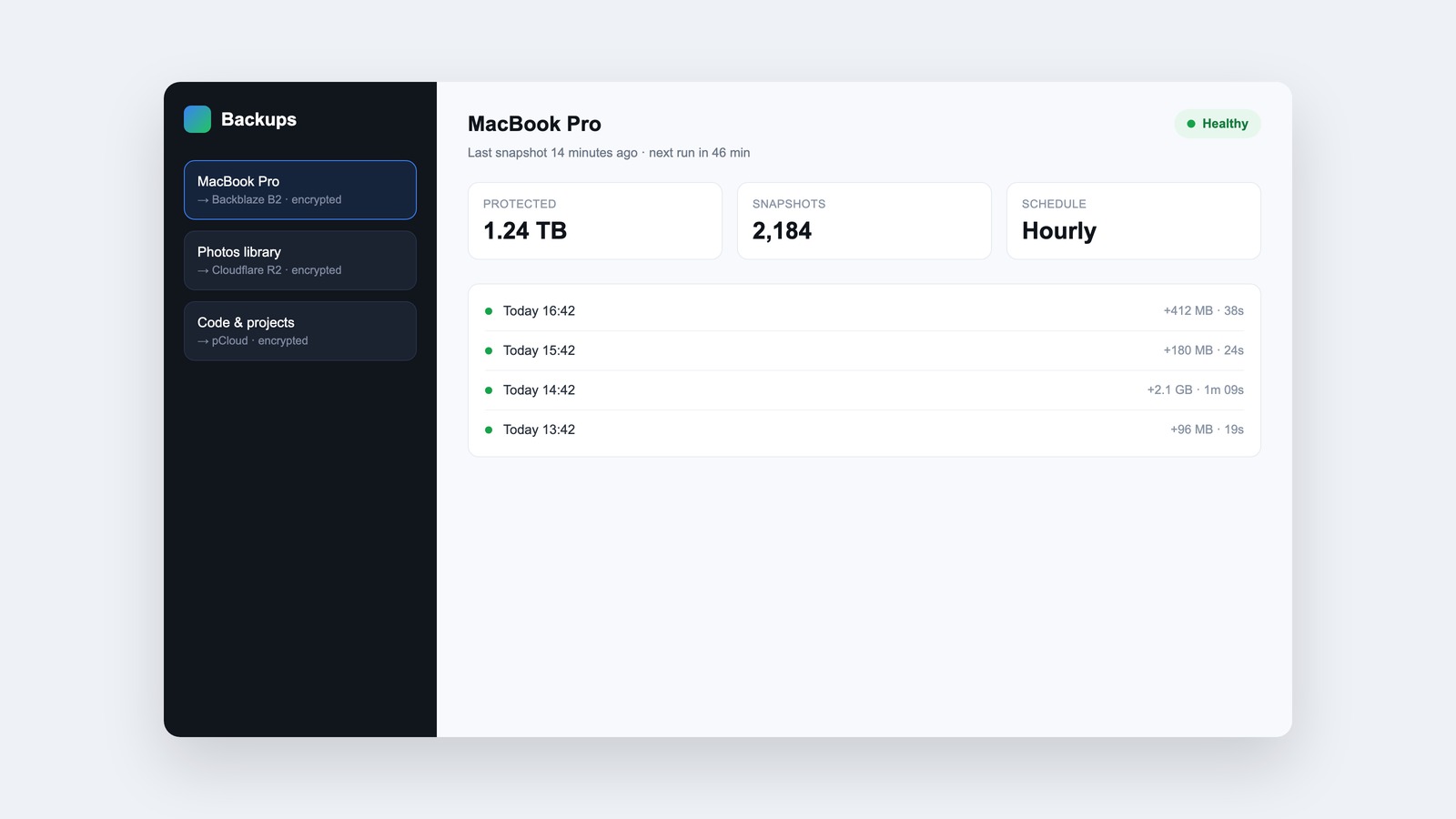
If the command line is not your thing, you do not have to live in it. Backrest is an open-source app that wraps restic with a real interface: it schedules your backups, shows progress, lets you browse snapshots, and restores files with a few clicks. It runs in the background with a dashboard you open in your browser, plus a menu bar icon on most macOS versions. You get restic's guarantees with a front end that a normal person can actually use.
Choose where the bytes land
Because restic encrypts before upload, choosing a cloud is a question of price, speed, and reliability rather than trust. The provider cannot read your data regardless. A few that work well:
Backblaze B2 is the default I reach for. It is S3-compatible object storage, which means restic talks to it natively and opens several parallel connections, so it saturates a normal home upload link. Storage runs about seven dollars per terabyte per month, and you can download your data back without per-gigabyte egress fees eating you alive, which is the trap that catches people who store backups on Amazon S3.
pCloud is a consumer cloud-storage service popular in Europe, with one-time lifetime plans that appeal if you dislike subscriptions. restic can use it through rclone. It works, but it is built for file sync rather than as a backup target, so it runs slower and less in parallel than true object storage. Fine as a second destination, less ideal as your primary for a large first upload.
Hetzner Storage Box is the cheapest option if you can use it: a flat monthly price for a fixed amount of space over SFTP, which restic supports directly. Wasabi is another S3-compatible option with no egress fees. Any of these is a reasonable home for an encrypted restic repository, and you can run two of them at once to get genuine off-site redundancy across two companies.
The mistakes that will bite you
A few things go wrong on almost every first attempt, and they are worth knowing before they waste your evening.
The first is placeholder files. On a Mac, iCloud Drive, cloud-drive apps, and virtual-machine managers store files that look enormous but are not actually on disk. They report their full logical size while keeping almost nothing locally. Point a backup at them and it tries to read the entire phantom size, so a job that should move a couple hundred gigabytes can balloon into terabytes and crawl for days. The fix is an exclude list: tell restic to skip iCloud's Mobile Documents folder, your cloud-drive mounts, virtual-machine disk images, package-manager caches, and anything else that is either already backed up elsewhere or trivially regenerated. Your real backup is smaller and faster than your disk usage suggests.
The second is your encryption password. restic's privacy comes from a key derived from a password you choose, and there is no recovery if you lose it. None. The encrypted data becomes permanent noise. Generate a strong password, store it in a password manager, and keep a copy somewhere offline as well. Treat it with the same care as the data it protects, because functionally it is the data.
The third is the network. Your first upload is the painful one, because it moves everything. After that, restic only sends changes, and daily backups finish in minutes. Run the first seed on a fast, stable connection and let it work overnight or across a weekend. Do not judge the tool's speed by what you see on hotel or cafe wifi, where the connection rather than the software is the bottleneck.
The fourth, and the one almost nobody warns you about, is macOS locking you out of your own data. The system protects your most personal files, Mail, Messages, Safari history, and the innards of many apps, behind a permission called Full Disk Access. A backup tool running under your account cannot read any of it until you grant that permission by hand, in System Settings under Privacy and Security. Miss this and the job still reports success while leaving out the very things you would most want back. Grant your backup app Full Disk Access once and the restic it launches inherits the same reach. It is the piece the Backblaze app handles for you by installing a privileged helper, and the piece you wire up yourself when you go the open-source route. Even then, a few files belong to the system rather than to you and stay unreadable; macOS recreates them on a fresh install, so excluding them costs nothing.
Test your restore before you trust it
This is the step everyone skips, and it is the only one that proves any of the rest worked. Until you have pulled a real file back out of a backup and checked it, you do not know the backup works. You are trusting that it does, which is a different thing.
The failure modes are easy to miss. A misconfigured path silently excludes the folder you cared about. A scheduled job stops running and nobody notices for months. A repository develops a problem that only surfaces the day you reach for it. The way to know your backup is real is to ask for a file back and confirm the bytes match.
Make it a habit. Once your backup is running, pick a real file, restore it to a scratch folder, and compare it to the original. Do it again every few months, and after any change to your setup. It takes five minutes and it is the only proof that your backup is real.
A setup worth copying
Here is the shape I land on, which you can adapt to your own machine. restic as the engine. A focused, frequent backup of the work that matters most, running hourly. A broader whole-machine backup running once a day for full recovery. Both encrypted, both versioned, both pointed at the cloud, ideally across two providers so no single account or company holds everything. Backrest watching over it so the whole thing is visible and a restore is never more than a few clicks away. And a calendar reminder every quarter to actually test a restore.
None of this is exotic, and once the first upload finishes it asks almost nothing of you. What it asks for up front is a decision: to treat your own data as something you would genuinely miss, and to do the unglamorous work of protecting it before the day you need it arrives.
Related





Leave a Reply