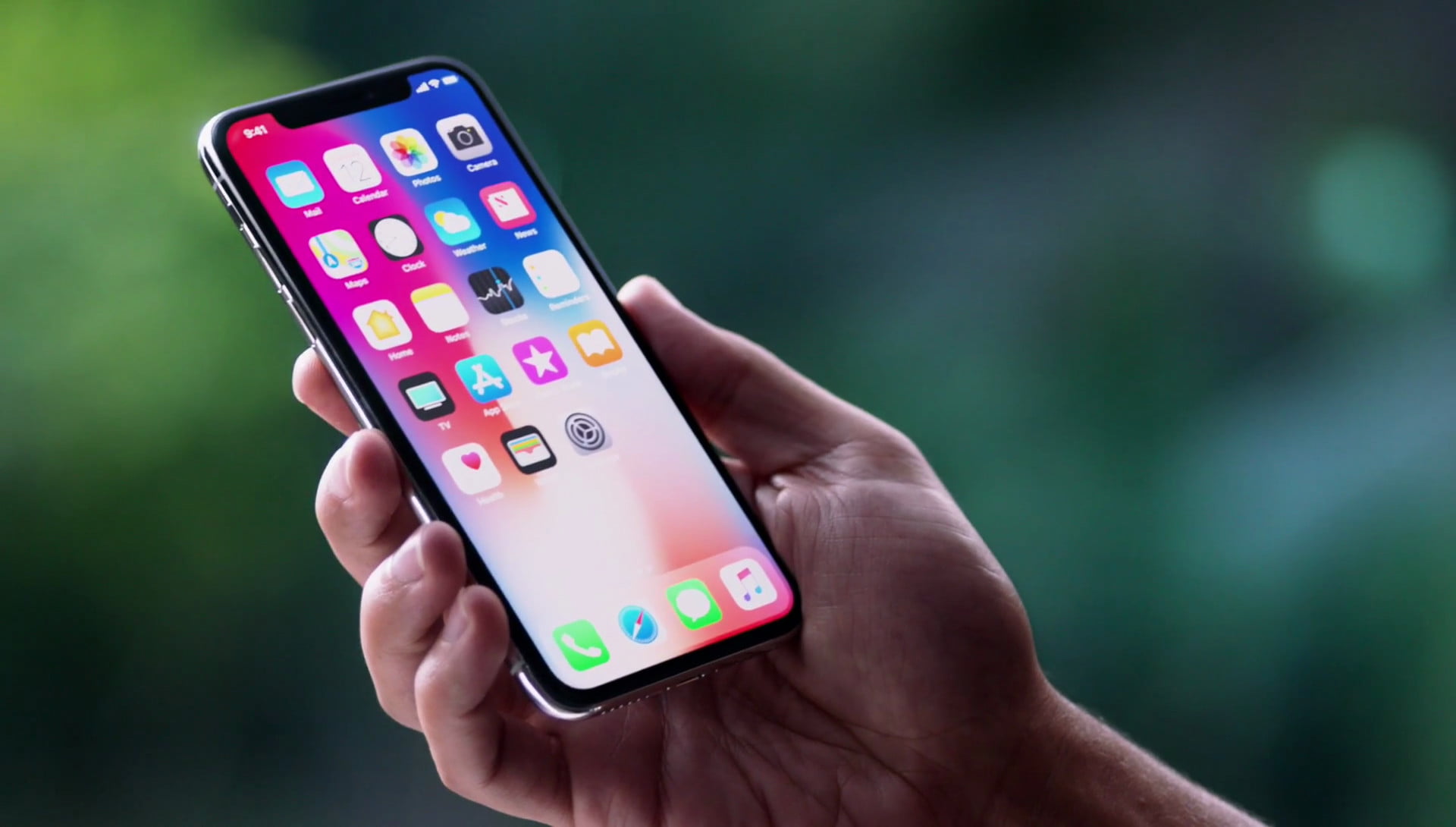
If you bought a Mac in the EU and went looking for iPhone Mirroring, the feature Apple demoed for controlling your iPhone from your desktop, you already know it isn’t there. The toggle never shows up. The app refuses to do anything useful. And unlike most missing features, this one isn’t a bug or a slow rollout. Apple turned it off on purpose for everyone inside the European Union, and as of this writing it’s still off.
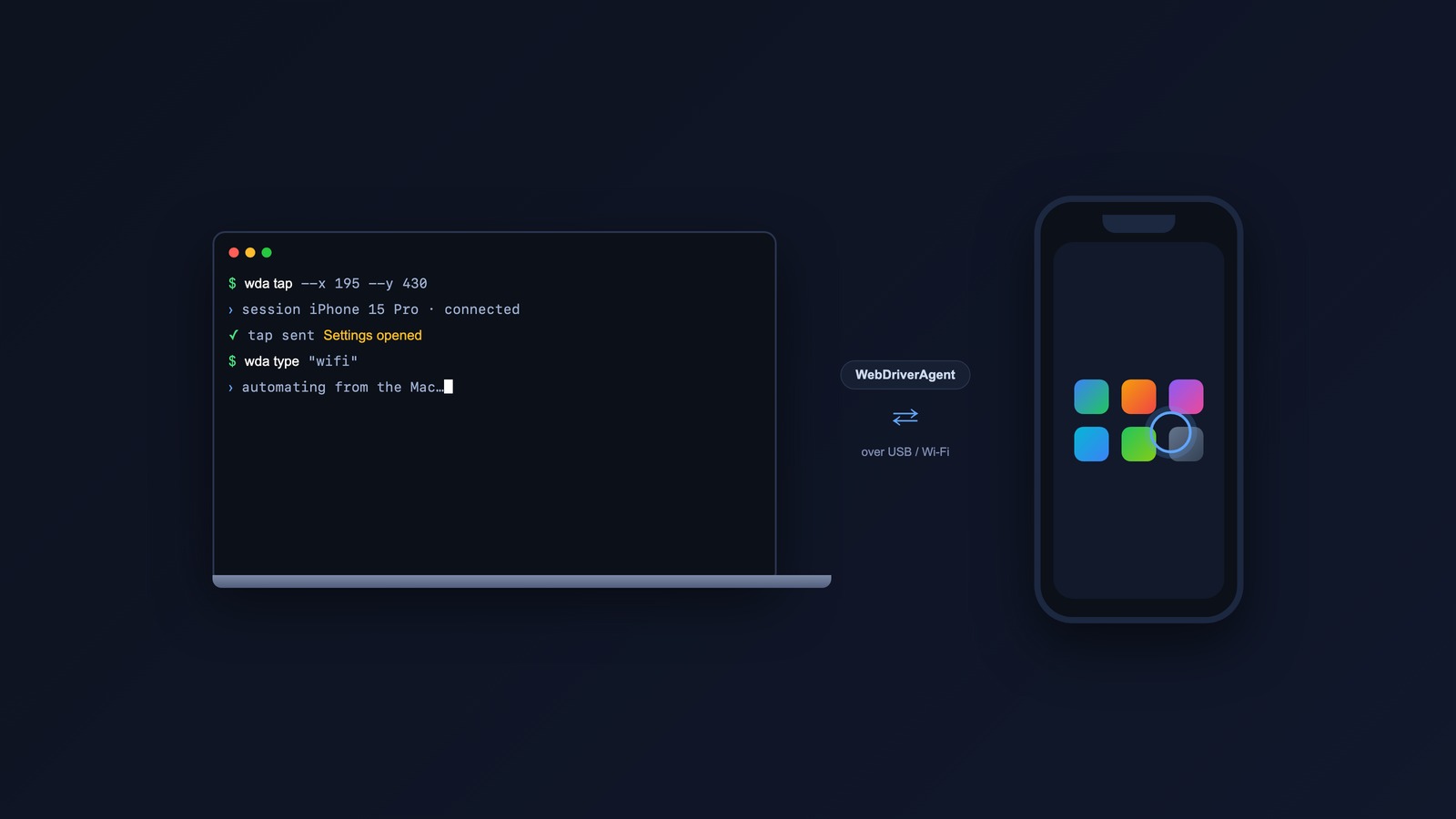
I run a lot of device automation, so I needed a way to drive an iPhone and an iPad from my Mac that didn’t depend on a feature Apple won’t ship here. The answer turned out to be WebDriverAgent, the same open-source server that backs most professional iOS test automation. It works in the EU, it works regardless of region, and it does far more than iPhone Mirroring ever offered. It also asks more of you up front. This piece covers why the feature is blocked, whether the bypasses are worth the trouble, and how to set up control and automation that nobody can geo-fence.
Why iPhone Mirroring Isn’t in the EU
The common assumption is that the Digital Markets Act made iPhone Mirroring illegal. That’s wrong, and the distinction matters. No DMA provision bans the feature. Apple chose to withhold it, citing uncertainty about what the DMA’s interoperability rules might later require.
When Apple announced the decision in June 2024, it told the Financial Times the cause was “regulatory uncertainties brought about by the Digital Markets Act.” The reasoning Apple gave was this:
“we are concerned that the interoperability requirements of the DMA could force us to compromise the integrity of our products in ways that risk user privacy and data security.”
The fear is specific. Under the DMA’s interoperability mandate, the European Commission can compel a gatekeeper to open the technology behind a feature to third parties on request. Apple worried that shipping iPhone Mirroring would oblige it to hand the underlying mechanism to other companies, or to make the Mac mirror non-Apple hardware such as Android phones. Its 2024 security white paper flagged iPhone Mirroring by name, noting that Meta had already requested access to the technology. So the honest framing is that Apple is unwilling to risk being forced to share the feature, considers the scope of that obligation unclear, and would rather give EU users nothing than find out later.
iPhone Mirroring wasn’t alone. The same June 2024 announcement withheld three features from EU customers: Apple Intelligence, iPhone Mirroring, and the SharePlay screen-sharing enhancements.
What’s Changed Since
The three features have gone in different directions, and it’s worth keeping them straight.
Apple Intelligence reversed course. Apple announced in October 2024 that it would arrive in the EU, and it shipped there in April 2025 with iOS 18.4 and macOS Sequoia 15.4: Writing Tools, Genmoji, the upgraded Siri, ChatGPT integration, the lot.
iPhone Mirroring did not follow. It was explicitly left out of that April 2025 rollout. At WWDC 2025, Apple told the French outlet Numerama that the feature would stay unavailable in the EU and would not arrive with iOS 26 or macOS 26 “Tahoe,” again citing regulatory uncertainty rather than any technical obstacle. As of this writing the feature has never shipped to EU users. If you’re reading this much later, check a current Apple availability page, because Apple’s position could soften the way it did with Apple Intelligence.
The Bypasses, and Why They’re Messy
You can make iPhone Mirroring appear, but every method has a catch, and the sources disagree on what actually controls the gate.
Changing your Apple Account region to a non-EU country is the most-cited route. Set the account on both your iPhone and your Mac to the US or another non-EU region and the feature reportedly turns on, because the gate keys off the account’s region setting. The cost is real: Apple requires you to spend any account balance to zero and cancel subscriptions before switching, the change can disrupt Family Sharing and break region-specific apps, and your payment method has to carry a billing address that matches the new region. A softer variant is to create a throwaway US account with no payment method and use it only for the feature gate, which avoids wrecking your primary account but isn’t guaranteed to hold.
Traveling outside the EU enables the feature automatically while you’re abroad, then disables it again when you come home. That behavior points to a location component in the gate, which is exactly why the region-change trick is unreliable for some people: Apple’s location detection can override the account setting.
A VPN on its own does not work. The gate is tied to your account region and device location signals, not your IP address, so flipping your apparent location with a VPN changes nothing.
AirPlay is the one EU-available option that needs no trickery, but it only mirrors the display to your Mac. You can see the phone; you can’t drive it with your keyboard and trackpad the way iPhone Mirroring allows. It’s a partial substitute, not a replacement.
The summary: there’s no clean, side-effect-free bypass. Misrepresenting your country of residence runs against Apple’s account terms, risks your balance and subscriptions, and may get silently undone by location detection. If all you want is to control and automate your device, there’s a better answer that sidesteps the whole regulatory mess.
WebDriverAgent: Control That Can’t Be Geo-Fenced
WebDriverAgent is an open-source server that runs on an iPhone, iPad, or Apple TV and exposes an HTTP API for driving the device: launch and quit apps, tap, swipe, scroll, type, read the on-screen UI tree, and capture screenshots. It started life at Facebook and is now maintained by the Appium project, the standard toolkit for mobile test automation.
It’s the right tool here because it runs locally through Apple’s own XCUITest framework, built and signed with your own developer identity. It has nothing to do with the DMA gate, your Apple Account region, or your physical location. If you can build and install an app on your device, you can run WebDriverAgent on it, in the EU or anywhere else.
Set expectations correctly, though. WebDriverAgent is an automation server you script against, not a polished “see my phone on my Mac” window. There’s no live video pane and no point-and-click mirror. You send it commands and it executes them on the device. For scripted control, testing, and remote automation that’s exactly what you want. For lounging on the couch and tapping through Instagram on your Mac, it’s the wrong tool, and AirPlay or nothing is the honest answer.
What You Need
- A Mac with Xcode installed.
- An Apple developer signing identity. A free Apple ID works for personal use; the catch is that free-account provisioning profiles expire after seven days, so you re-sign weekly. A paid Apple Developer account ($99/year) lasts a year.
- The iPhone or iPad you want to control, and a cable to connect it the first time.
- libimobiledevice for the port forwarding, which you can install with Homebrew:
brew install libimobiledevice.
Setting It Up
Clone the Appium fork, not the original Facebook one, which is archived:
git clone https://github.com/appium/WebDriverAgent.git
cd WebDriverAgent
open WebDriverAgent.xcodeproj
In Xcode, select the WebDriverAgentRunner target, open Signing & Capabilities, tick “Automatically manage signing,” and choose your team. Give the bundle identifier something unique to you, for example com.yourname.WebDriverAgentRunner, so signing doesn’t collide with anyone else’s.
Connect the device, enter your passcode to wake it, and accept the Trust prompt. Then build and launch the runner. The reliable path from the command line is to build the test bundle once, then run it:
xcodebuild build-for-testing \
  -project WebDriverAgent.xcodeproj \
  -scheme WebDriverAgentRunner \
  -destination 'id=YOUR_DEVICE_UDID'

xcodebuild test-without-building \
  -xctestrun ./build/Build/Products/WebDriverAgentRunner_*.xctestrun \
  -destination 'id=YOUR_DEVICE_UDID'
Find your device UDID with idevice_id -l. The first time the runner launches, the device shows an “Untrusted Developer” notice; clear it under Settings, General, VPN & Device Management by trusting your developer certificate. Once the runner is live it keeps a server listening on port 8100 on the device itself.
To reach that server from your Mac, forward the port over USB:
iproxy 8100 8100 -u YOUR_DEVICE_UDIDNow http://localhost:8100/status answers from your Mac. If you want to drive two devices at once, give the second one a different local port, say iproxy 8101 8100 -u OTHER_UDID, and point your scripts there.
Driving the Device
The API speaks JSON over HTTP. A quick health check:
curl -s http://localhost:8100/statusMost actions run inside a session. Open one, then send taps and keystrokes against it:
# Start a session
SID=$(curl -s -X POST http://localhost:8100/session \
  -H 'Content-Type: application/json' \
  -d '{"capabilities":{"alwaysMatch":{}}}' | python3 -c 'import sys,json;print(json.load(sys.stdin)["sessionId"])')

# Tap at coordinates
curl -s -X POST http://localhost:8100/session/$SID/wda/tap/0 \
  -H 'Content-Type: application/json' -d '{"x":200,"y":400}'

# Type into the focused field
curl -s -X POST http://localhost:8100/session/$SID/wda/keys \
  -H 'Content-Type: application/json' -d '{"value":["h","e","l","l","o"]}'

# Grab a screenshot (base64 PNG in the "value" field)
curl -s http://localhost:8100/screenshot
Other endpoints worth knowing: POST /wda/homescreen returns to the springboard, GET /session/$SID/source dumps the full UI element tree as XML so you can find elements by label instead of guessing at pixel coordinates, and creating a session with a bundleId capability launches a specific app.
In practice you don’t curl raw endpoints all day. You wrap them in a thin script. I keep a small Python CLI that turns the API into commands like phone tap 200 400, phone type "hello", phone screenshot out.png, and phone launch com.apple.Preferences, so a whole automation reads like a shell script. It’s the same pattern I use to drive a remote machine from my laptop and phone. Once you can tap by element label from the UI tree, you can write flows that survive layout changes, which is the difference between a brittle macro and something you’ll actually keep using.
What You Can and Can’t Do
Within an app you have full reach: every tap, swipe, text field, and button is scriptable, and you can read the live UI tree to drive flows by element rather than by coordinate. You can run unattended sequences, schedule them, and chain them with the rest of your tooling.
The limits are honest ones. The runner has to stay alive; close it and control stops. On a free Apple account the signing expires weekly and you re-run the build. And it gives you control, not a credential bypass, so anything that needs you to physically enter an Apple ID password or clear a system security prompt is still yours to do by hand. For one-off chores you don’t need a whole automation for, like getting photos off your iPhone, simpler routes exist. None of that is a dealbreaker for automation. It’s the price of a tool that answers to your developer certificate instead of to a regional policy switch.
Is It Worth It
For controlling and automating an iPhone or iPad from a Mac in the EU, WebDriverAgent is the most capable option available, and it’s the only one that no regulator or region setting can take away from you. The setup costs you an afternoon and a working knowledge of Xcode signing. After that you have a device you can script as freely as anything else on your machine.
iPhone Mirroring was a convenience Apple decided EU users couldn’t be trusted with under the current rules. The automation it gestured at was always available to anyone willing to build it. That’s the trade worth making.
Related






Leave a Reply